Change your name, email or phone
Update your details and how you log in from your Profile.
Read the video’s transcript
Here’s how to change your name, email or phone.
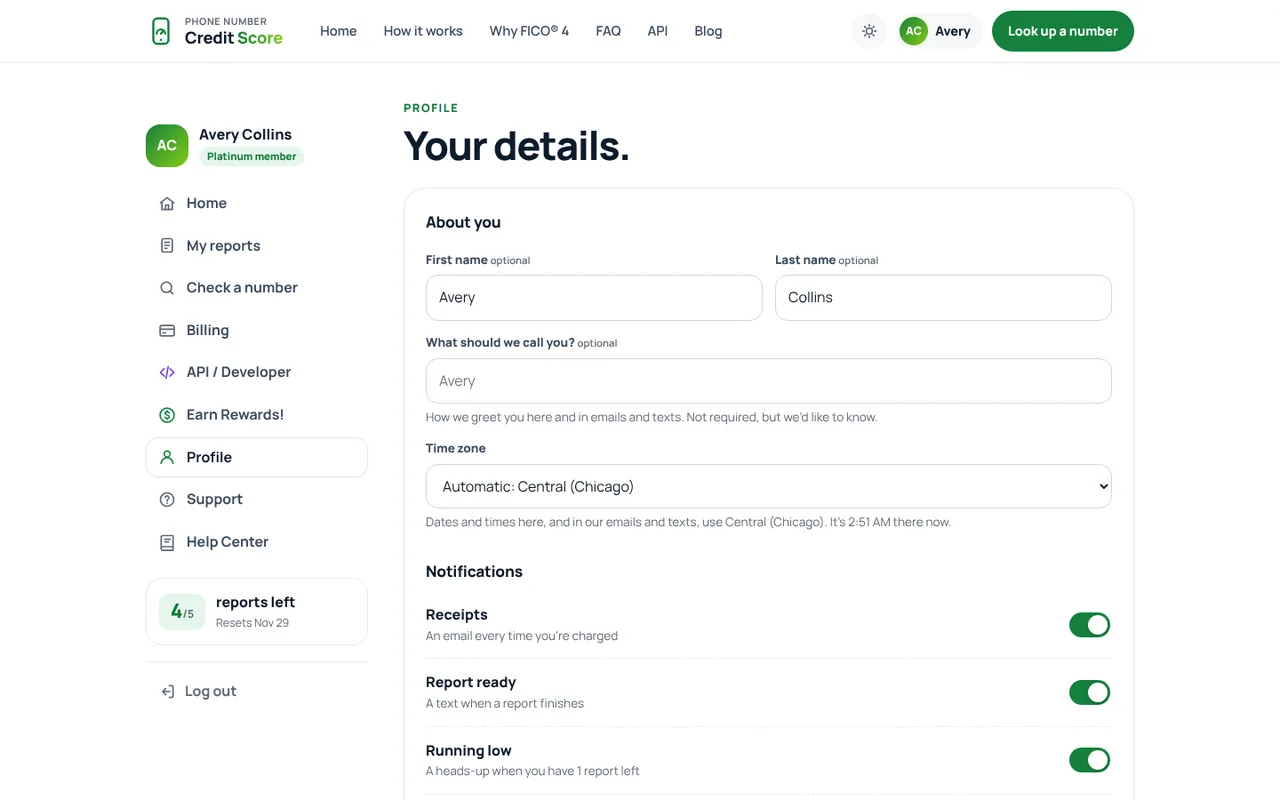
To change your details, open Profile from your account menu.
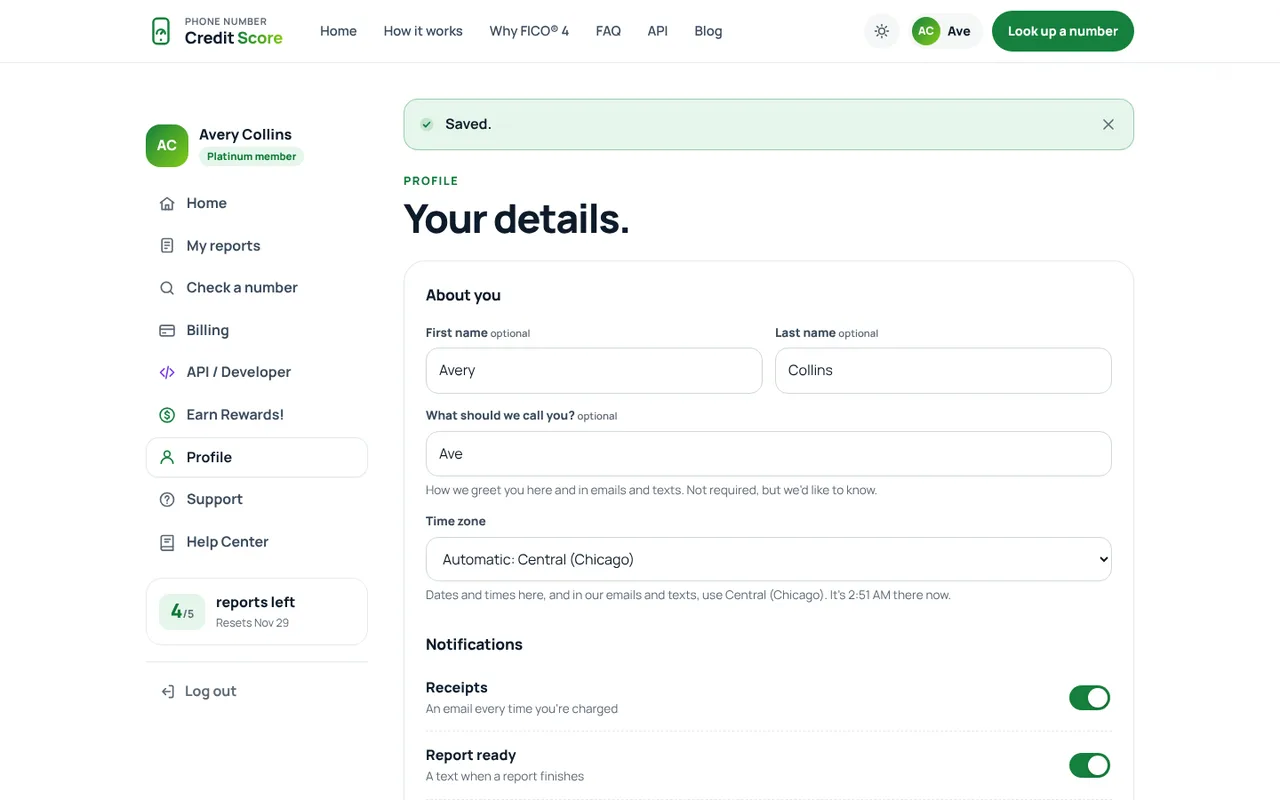
Under About you, change your name, or what we should call you, then select Save changes.
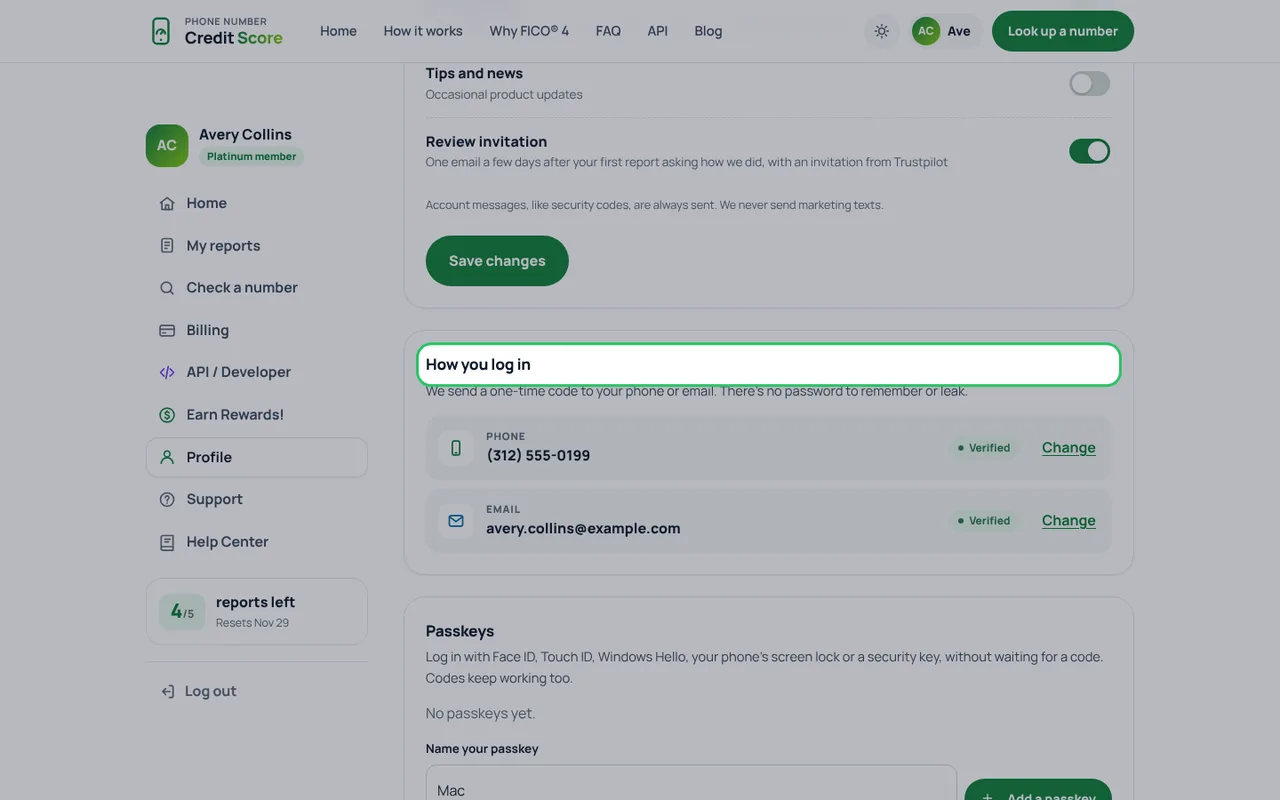
Under How you log in, select Change next to your email or phone. We’ll confirm the new one with a code.
Still stuck? Our team is happy to help. Just contact Support.
Step by step on a computer
-
Open Profile from your account menu.
-
Under About you, edit your name, then select Save changes.
-
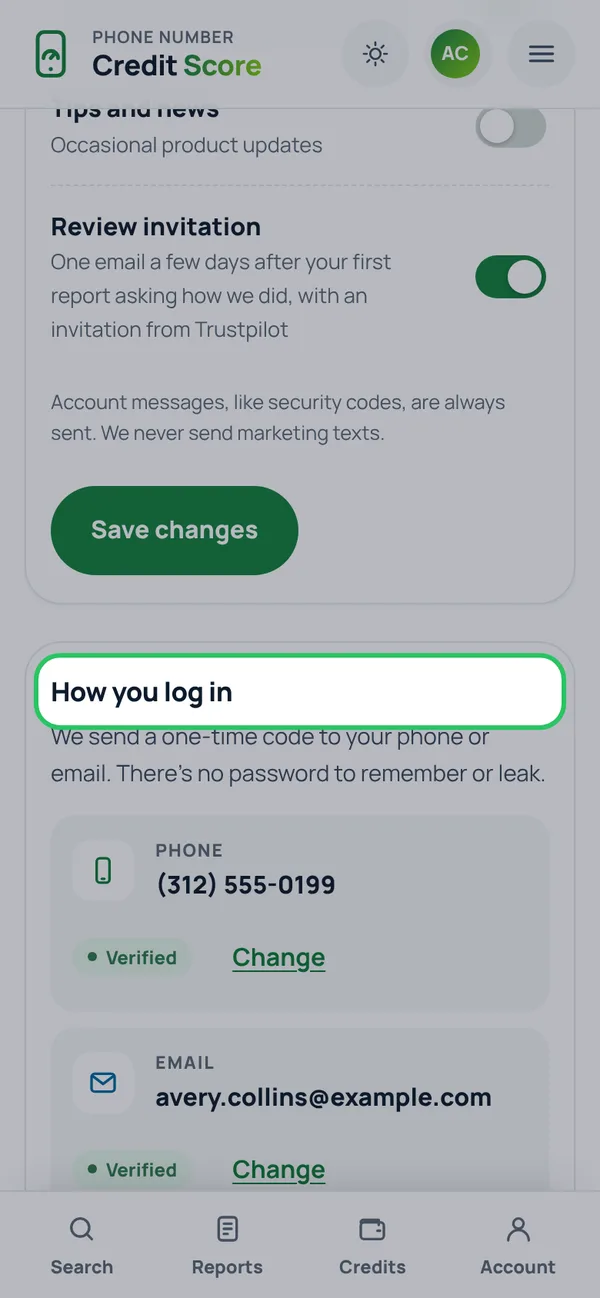
Under How you log in, select Change next to your email or phone. We send a code to the new one to confirm it’s yours.
Read the video’s transcript
Here’s how to change your name, email or phone.
To change your details, tap Account, at the bottom of the screen, then Settings.
Under About you, change your name, or what we should call you, then tap Save changes.
Under How you log in, tap Change next to your email or phone. We’ll confirm the new one with a code.
Still stuck? Our team is happy to help. Just contact Support.
Step by step on a phone
-
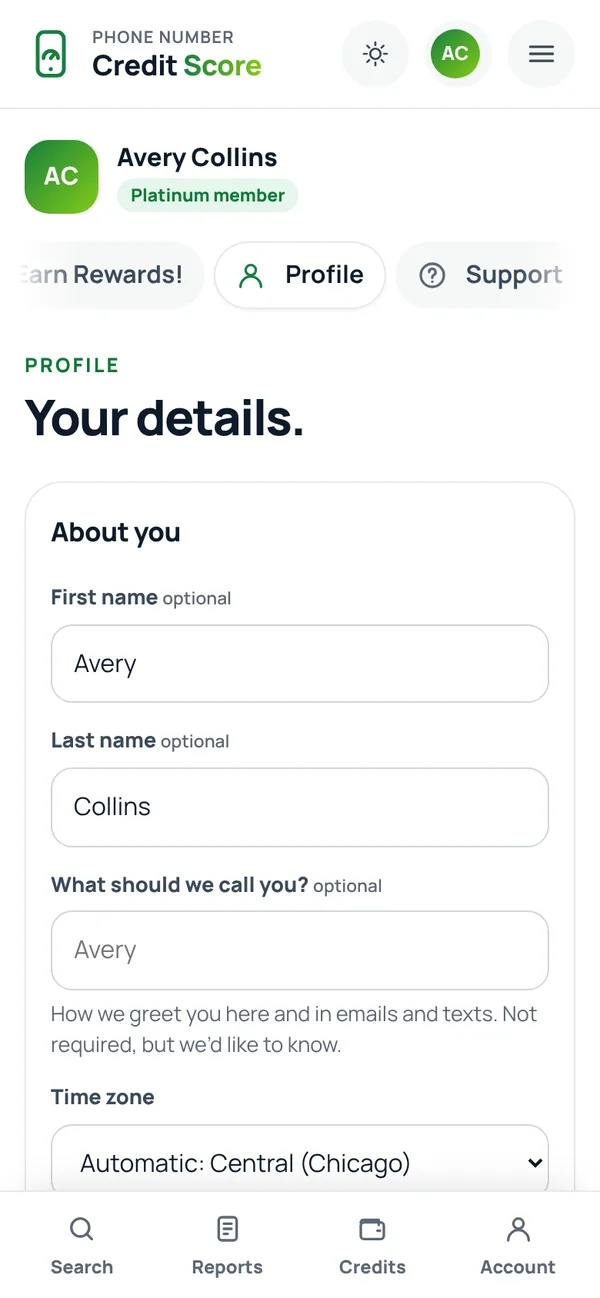
Tap Account in the bar at the bottom, then Settings.
-
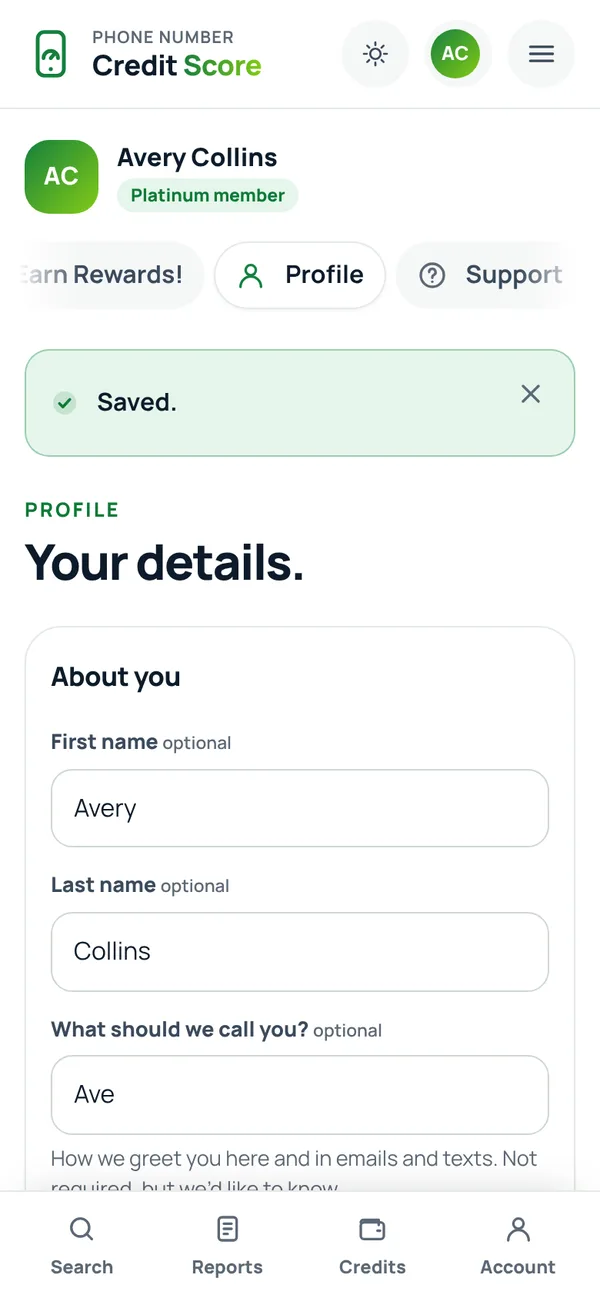
Under About you, edit your name, then tap Save changes.
-
Under How you log in, tap Change next to your email or phone. We send a code to the new one to confirm it’s yours.