Add a passkey for faster sign-in
Sign in with Face ID, Touch ID or your device’s screen lock instead of a code.
Read the video’s transcript
Here’s how to add a passkey for faster sign-in.
To add a passkey, open Profile from your account menu.
Find Passkeys, and select Add a passkey.
Confirm with Face ID, Touch ID or your screen lock. Next time, sign in with your passkey.
Still stuck? Our team is happy to help. Just contact Support.
Step by step on a computer
-
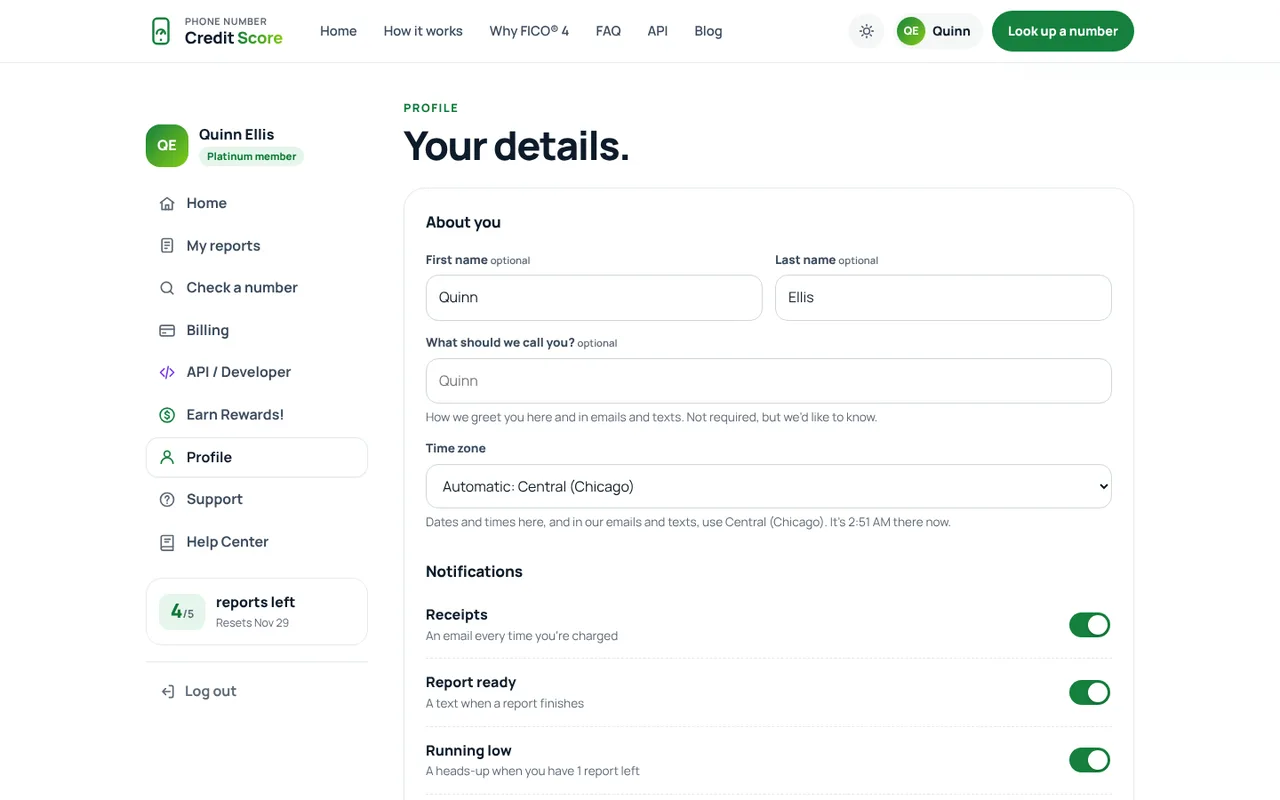
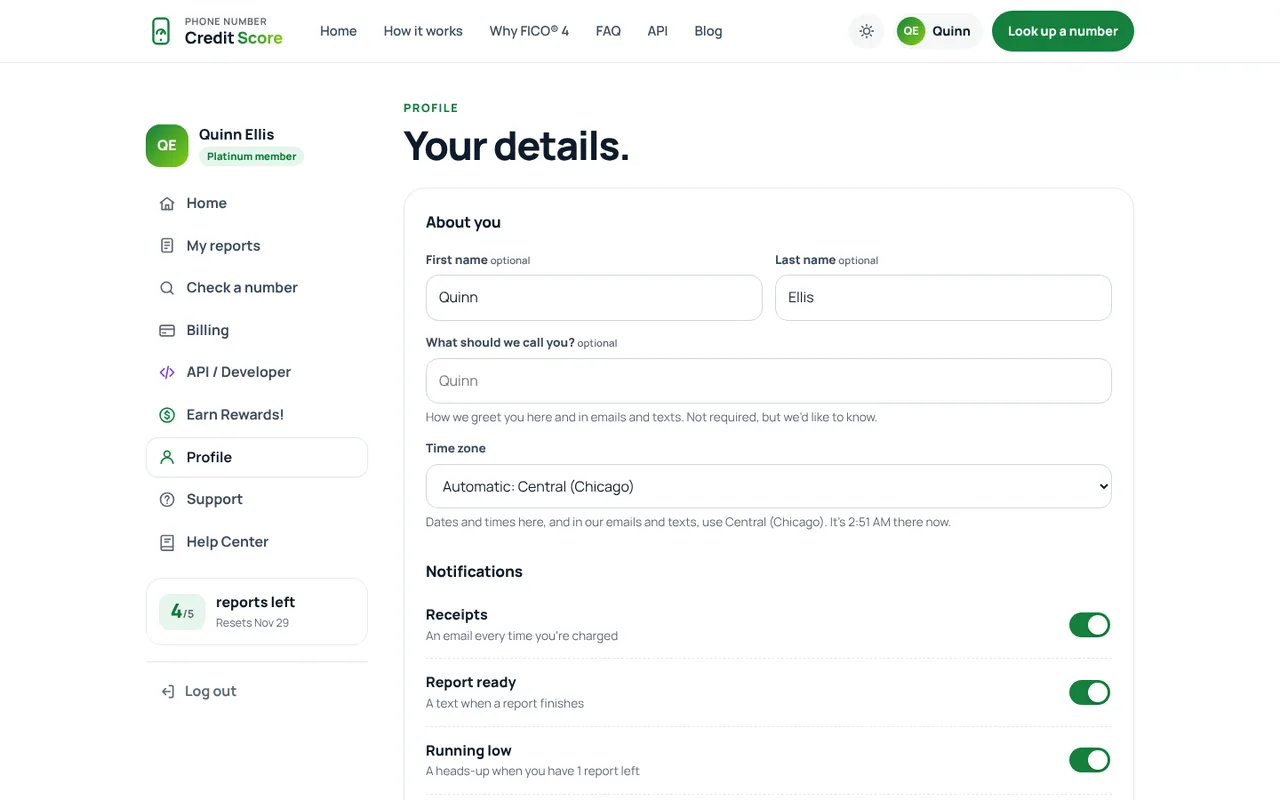
Open Profile from your account menu.
-
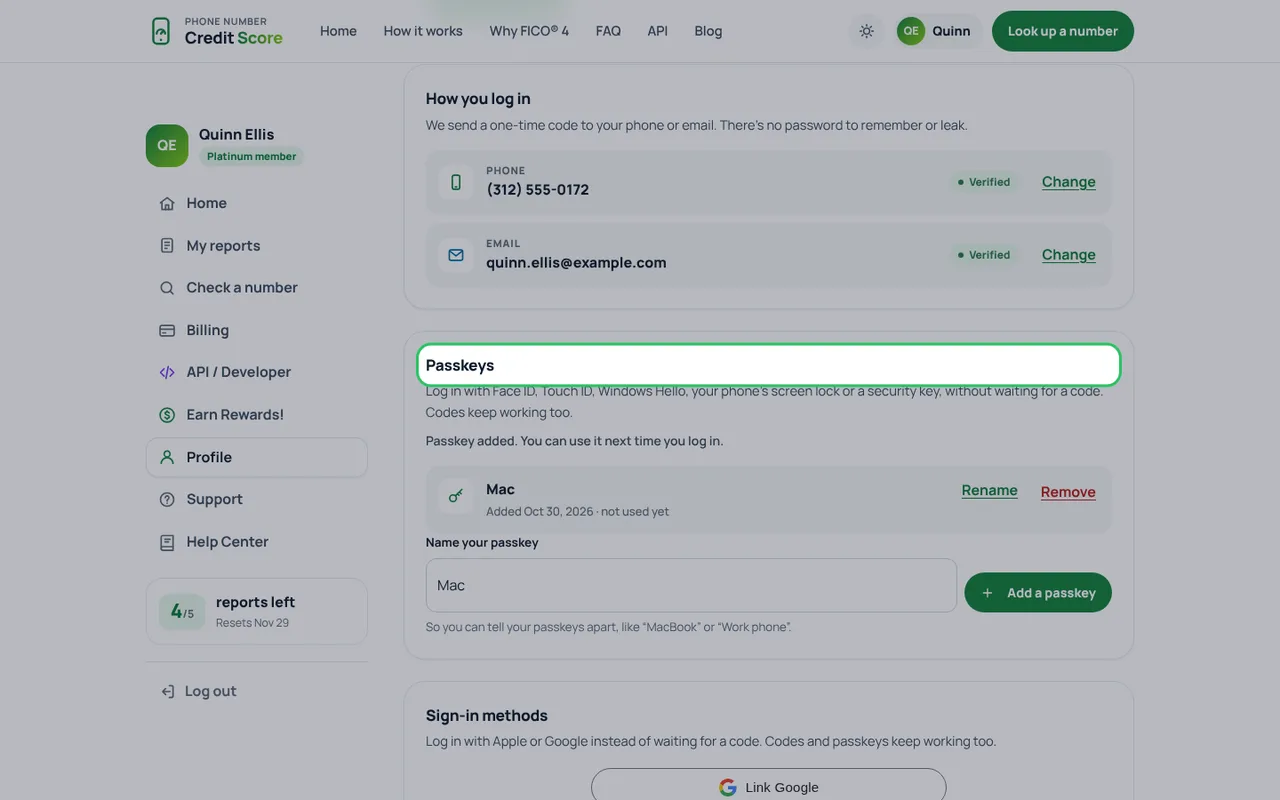
Find Passkeys and select Add a passkey.
-
Confirm with Face ID, Touch ID or your screen lock. Next time, choose Have a passkey? on the login page.
Read the video’s transcript
Here’s how to add a passkey for faster sign-in.
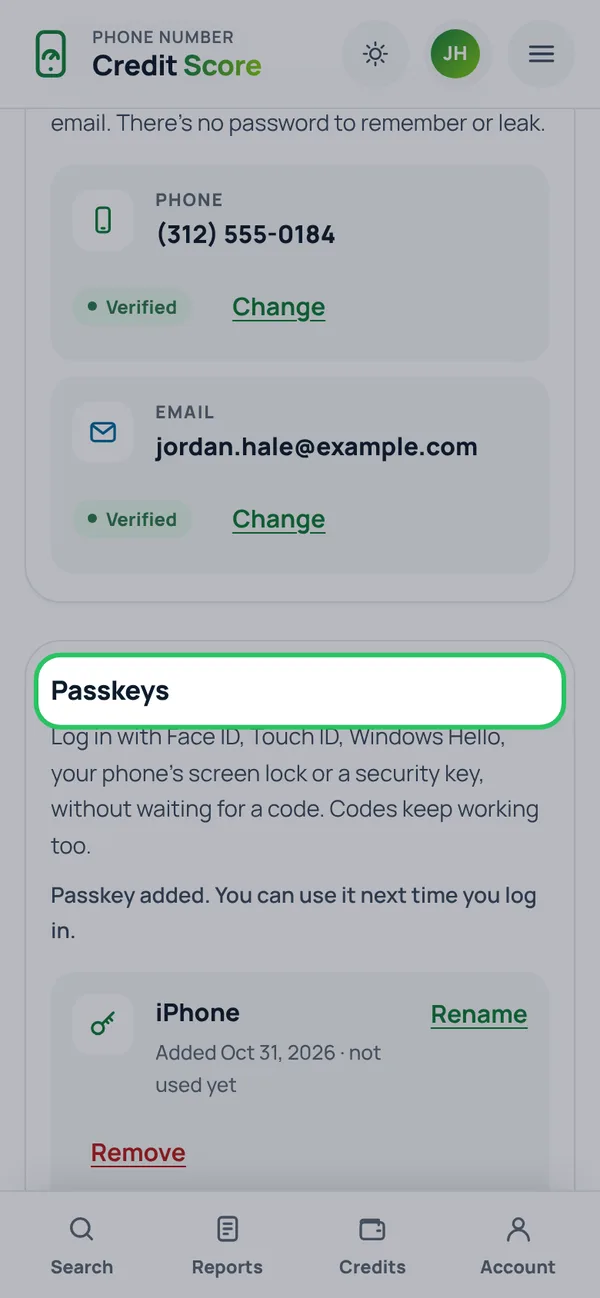
To add a passkey, tap Account, at the bottom of the screen, then Settings.
Find Passkeys, and tap Add a passkey.
Confirm with Face ID, Touch ID or your screen lock. Next time, sign in with your passkey.
Still stuck? Our team is happy to help. Just contact Support.
Step by step on a phone
-
Tap Account in the bar at the bottom, then Settings.
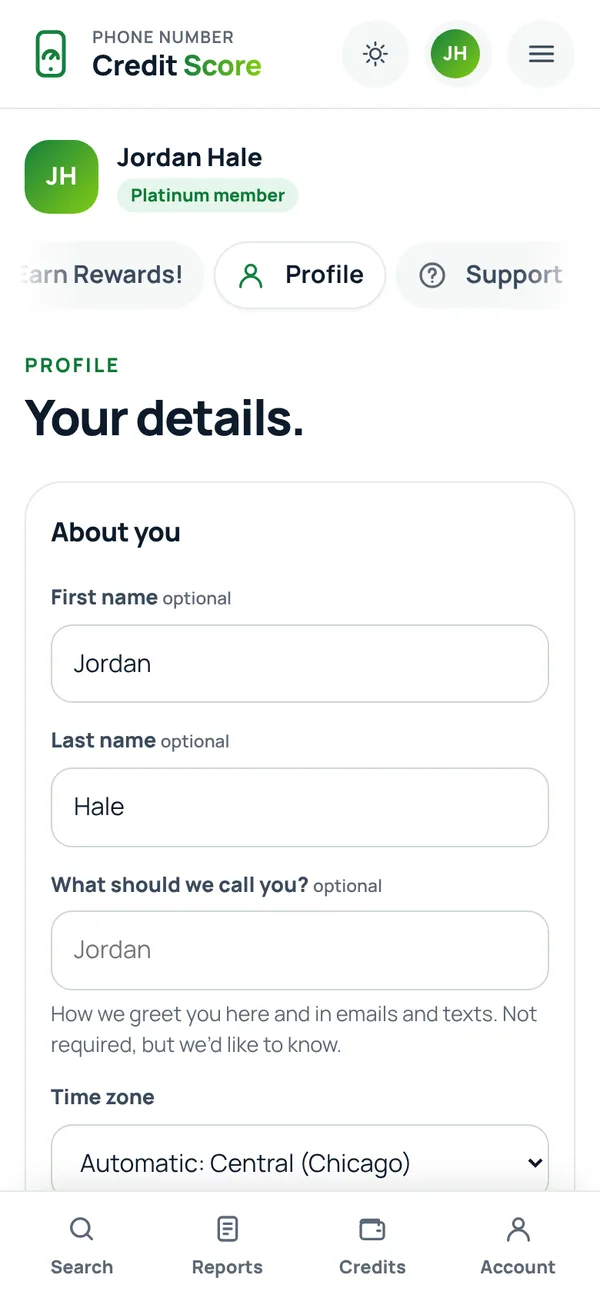
-
Find Passkeys and tap Add a passkey.
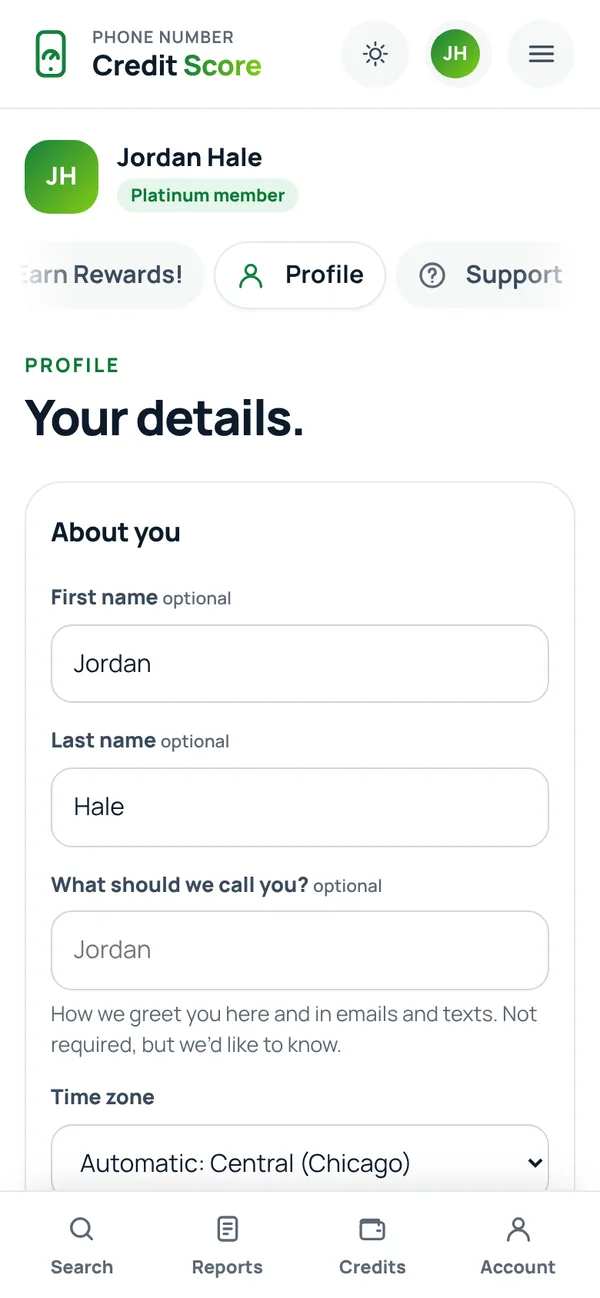
-
Confirm with Face ID, Touch ID or your screen lock. Next time, choose Have a passkey? on the login page.