Download, print or save a report as a PDF
Save any report from your account as a PDF, in light or dark, to print or keep.
Read the video’s transcript
Here’s how to download, print, or save a report as a PDF.
Open the report from My reports.
Near the top of the report, select Print or save PDF.
Choose light or dark. The PDF opens, ready to print or save to your device.
Still stuck? Our team is happy to help. Just contact Support.
Step by step on a computer
-
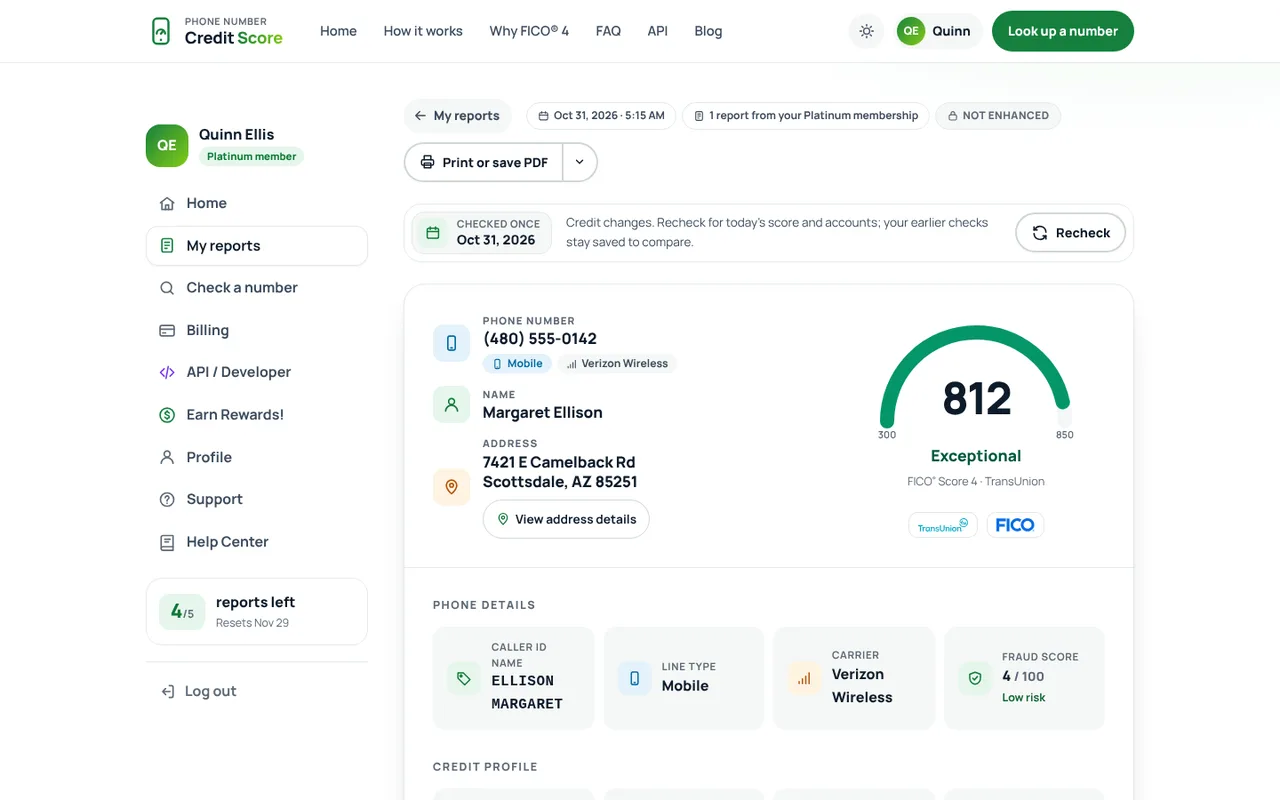
Open the report from My reports.
-
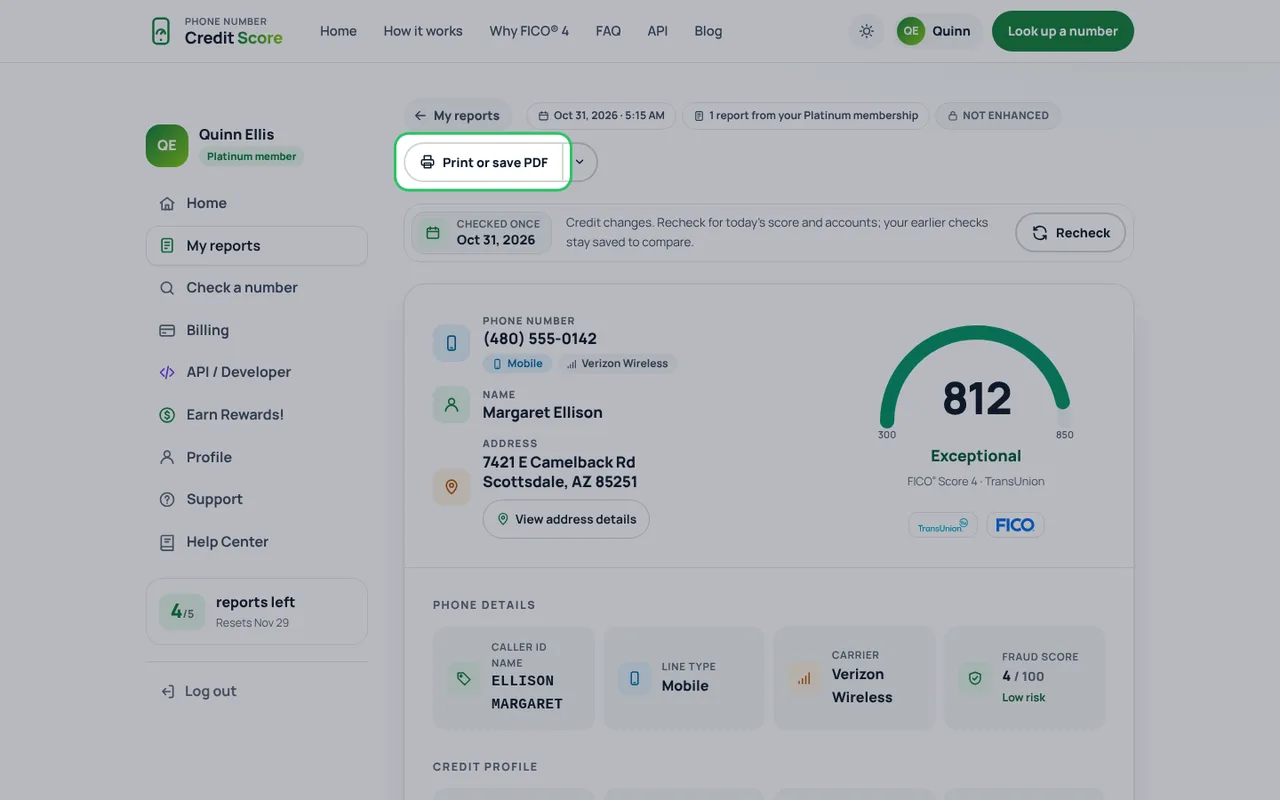
Select Print or save PDF at the top of the report.
-
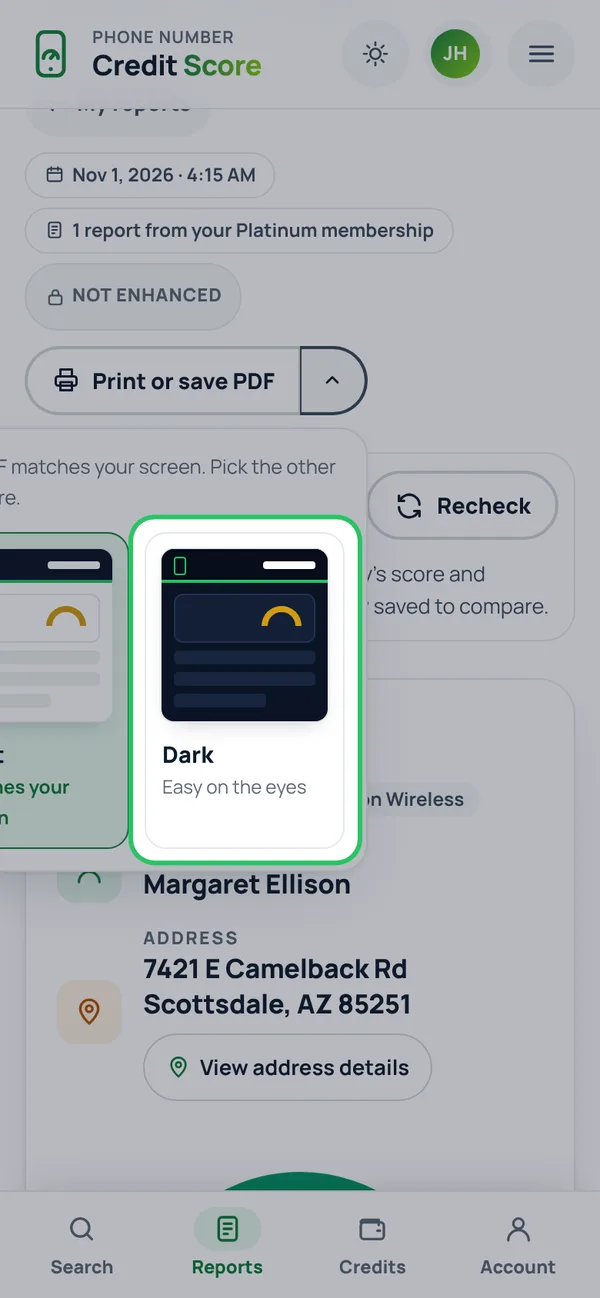
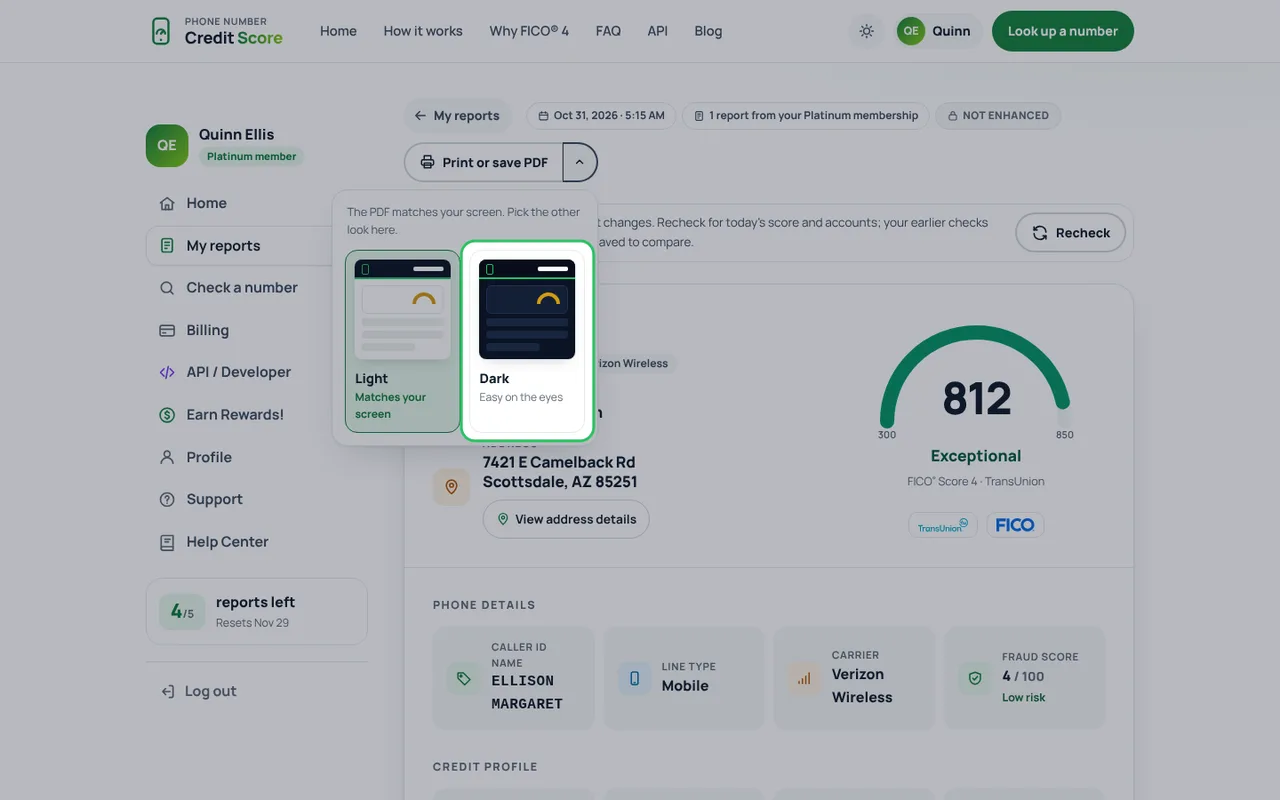
Pick Light or Dark. The PDF opens in a new tab, ready to print or save.
Read the video’s transcript
Here’s how to download, print, or save a report as a PDF.
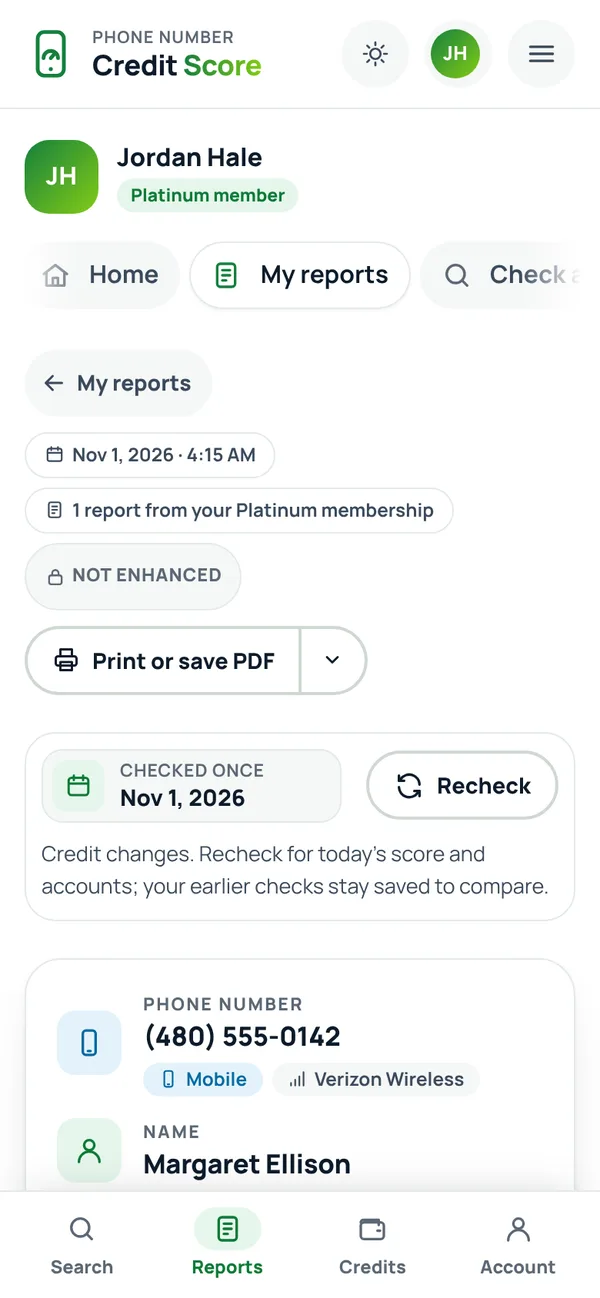
Tap Reports, at the bottom of the screen, and open the report.
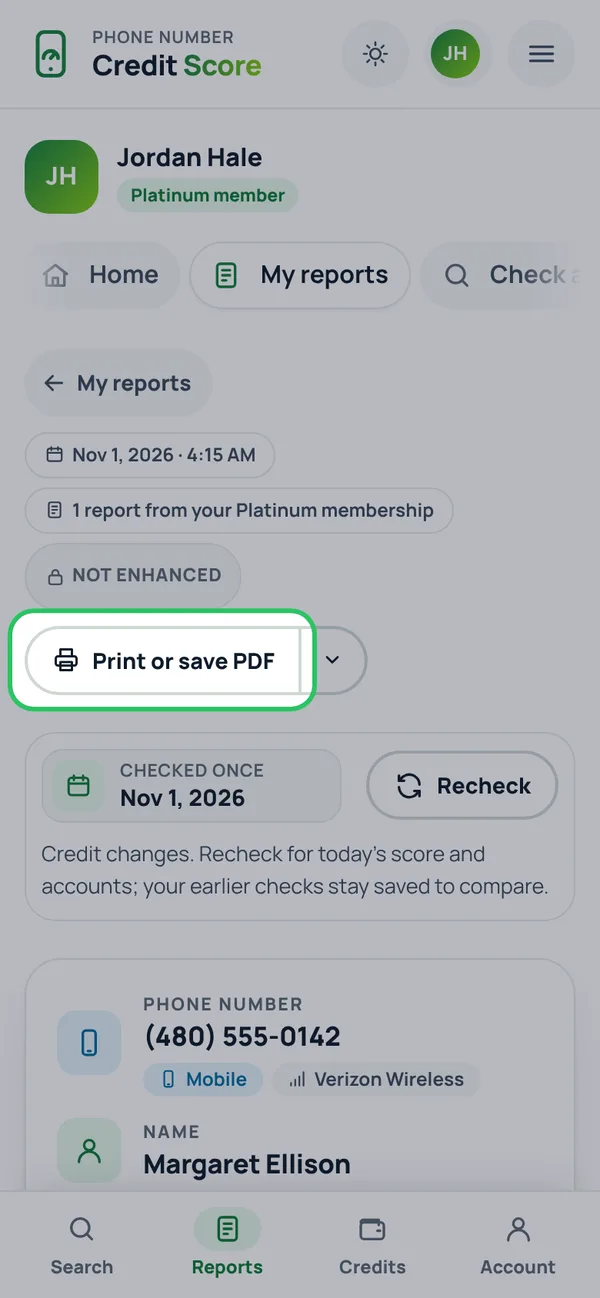
Near the top of the report, tap Print or save PDF.
Choose light or dark. The PDF opens, ready to print or save to your device.
Still stuck? Our team is happy to help. Just contact Support.
Step by step on a phone
-
Tap Reports in the bar at the bottom, and open the report.
-
Tap Print or save PDF at the top of the report.
-
Pick Light or Dark. The PDF opens in a new tab, ready to print or save.