Connect an AI assistant (MCP)
Let Claude, ChatGPT, Cursor and other assistants run lookups for you, with your spending limits.
Read the video’s transcript
Here’s how to connect an AI assistant, like Claude or ChatGPT, to your account.
To connect an AI assistant, open Apps and AI.
Under Connect an AI assistant, copy our server address.
Then follow the steps for your assistant. Add the address, and sign in to approve it.
Connected assistants show up under Connected apps, where you can set limits or disconnect them.
Still stuck? Our team is happy to help. Just contact Support.
Step by step on a computer
-
Open API / Developer, then Apps & AI.
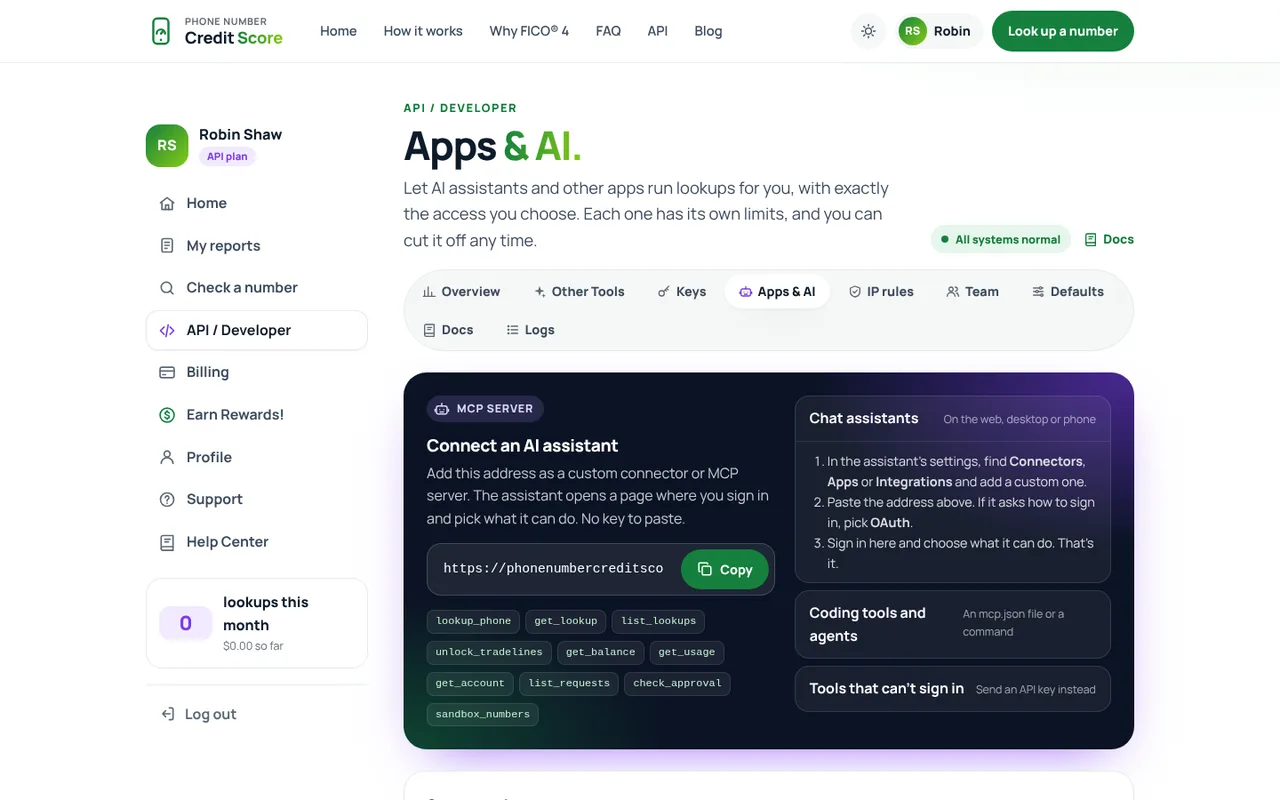
-
Under Connect an AI assistant, select Copy to copy our server address.
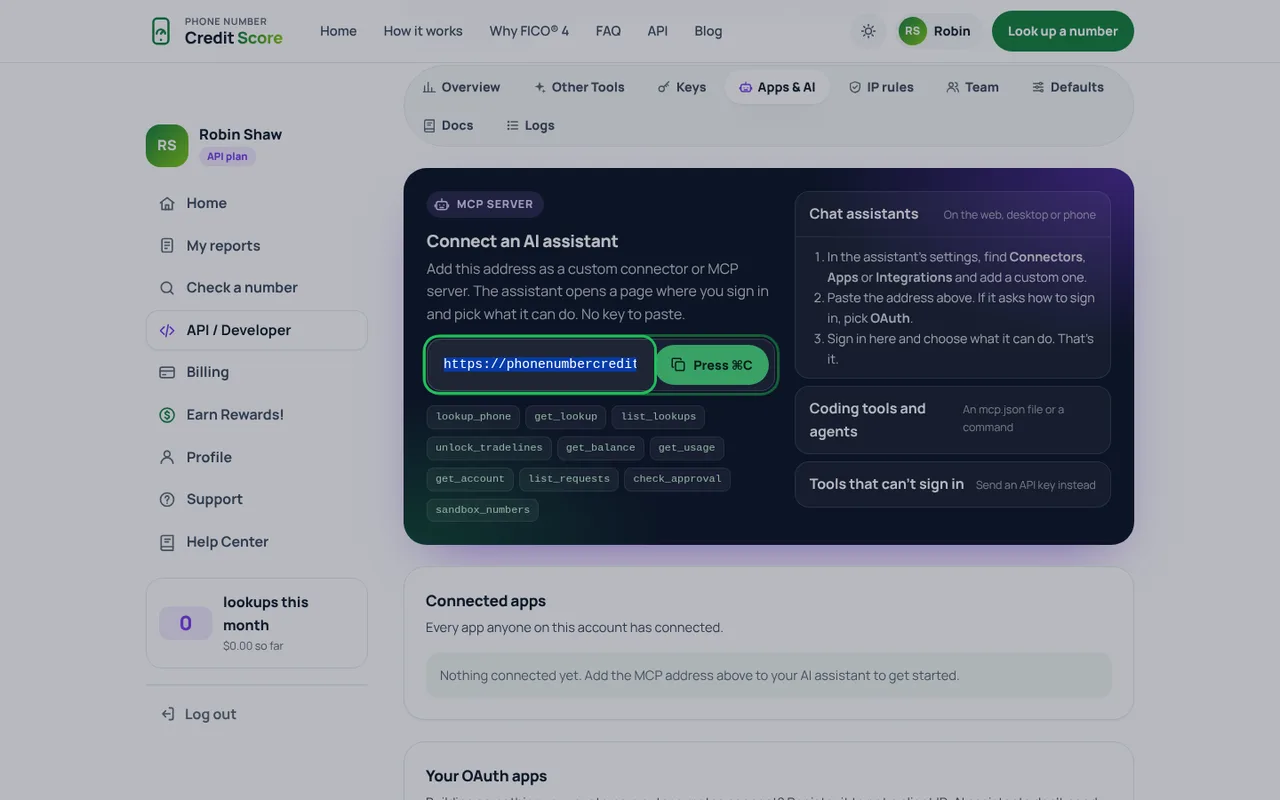
-
Open your assistant’s instructions below: chat assistants, coding tools, or tools that use an API key. Add the address there, then sign in to approve it.
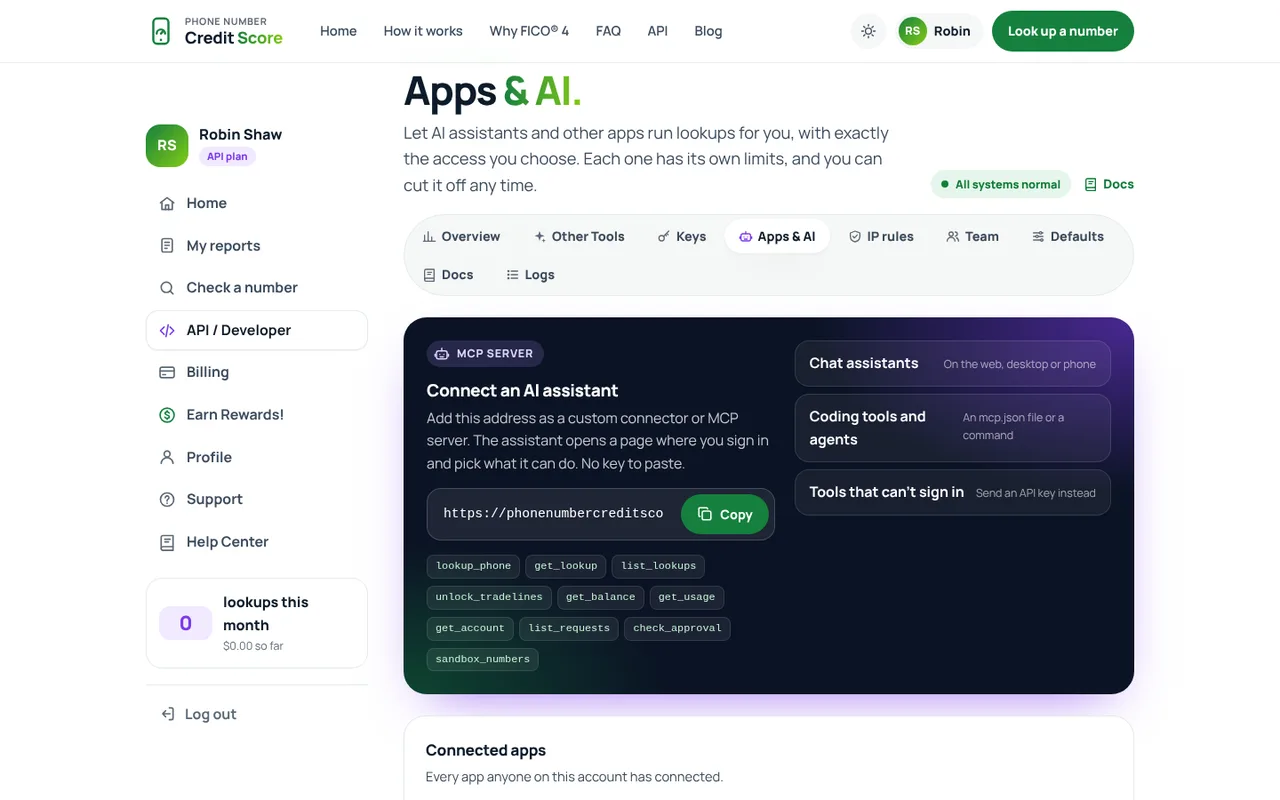
-
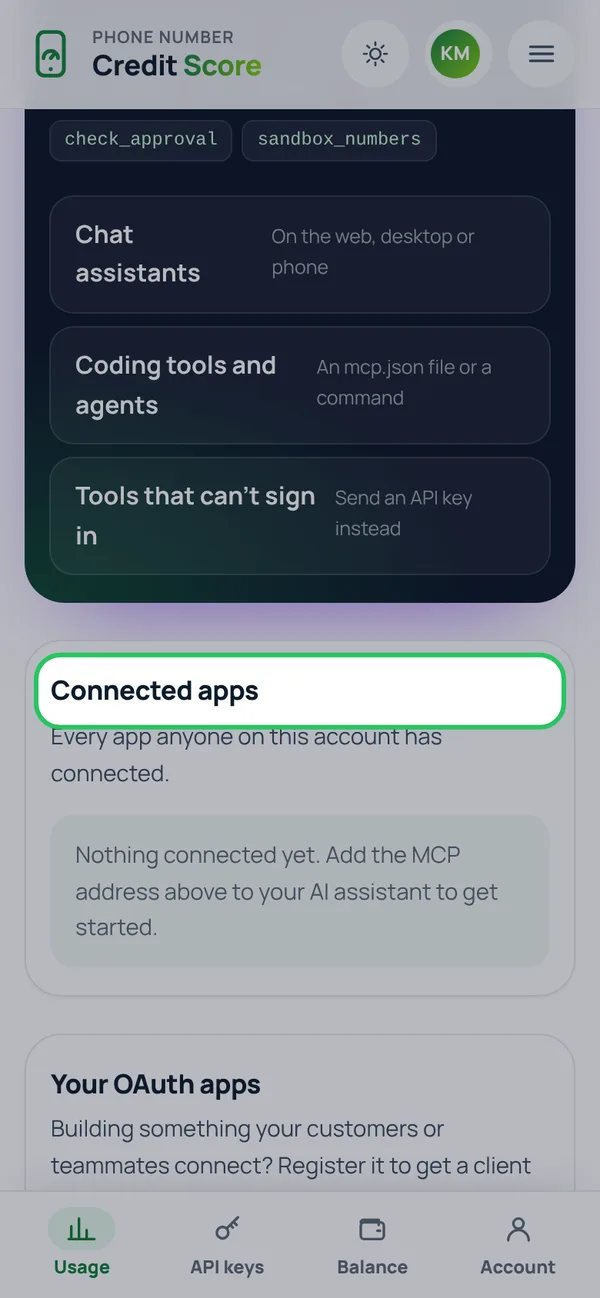
Connected assistants are listed under Connected apps, where you can set limits or disconnect them.
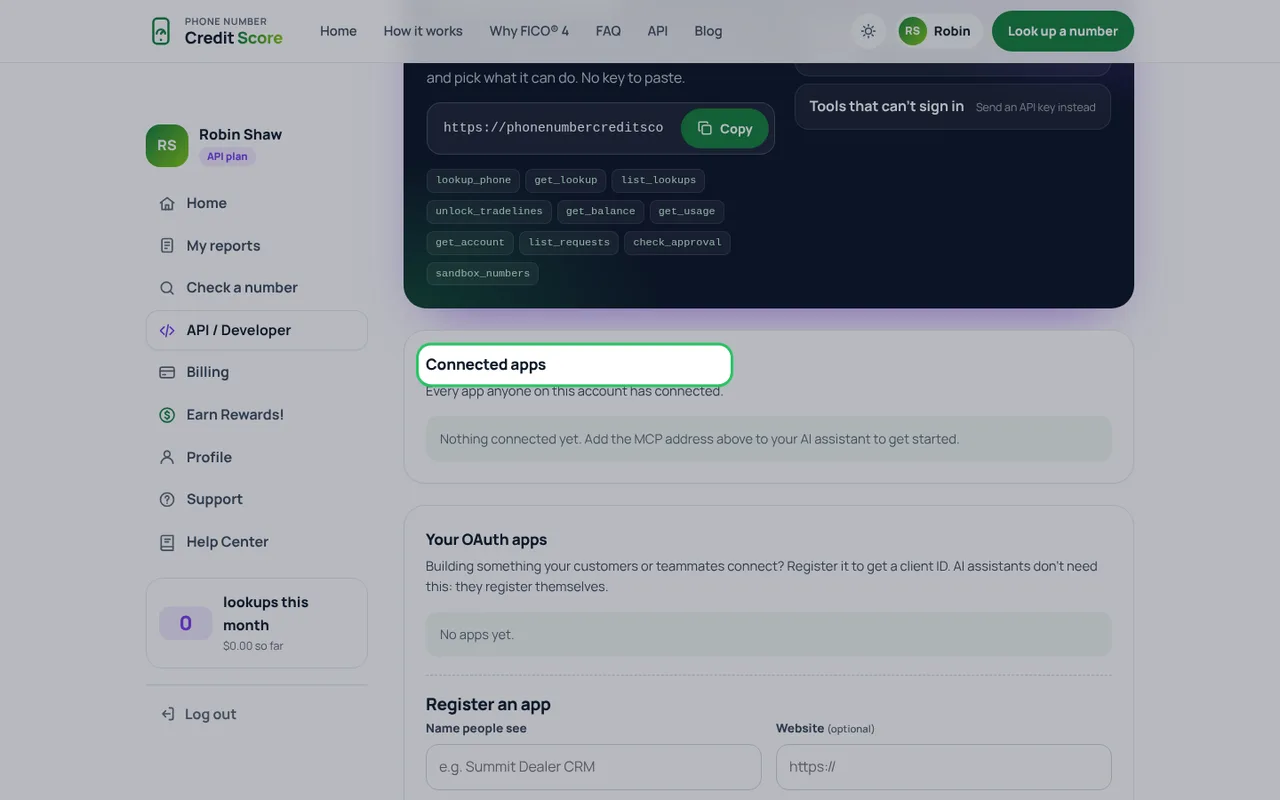
Read the video’s transcript
Here’s how to connect an AI assistant, like Claude or ChatGPT, to your account.
To connect an AI assistant, open Apps and AI.
Under Connect an AI assistant, copy our server address.
Then follow the steps for your assistant. Add the address, and sign in to approve it.
Connected assistants show up under Connected apps, where you can set limits or disconnect them.
Still stuck? Our team is happy to help. Just contact Support.
Step by step on a phone
-
Open API / Developer, then Apps & AI.
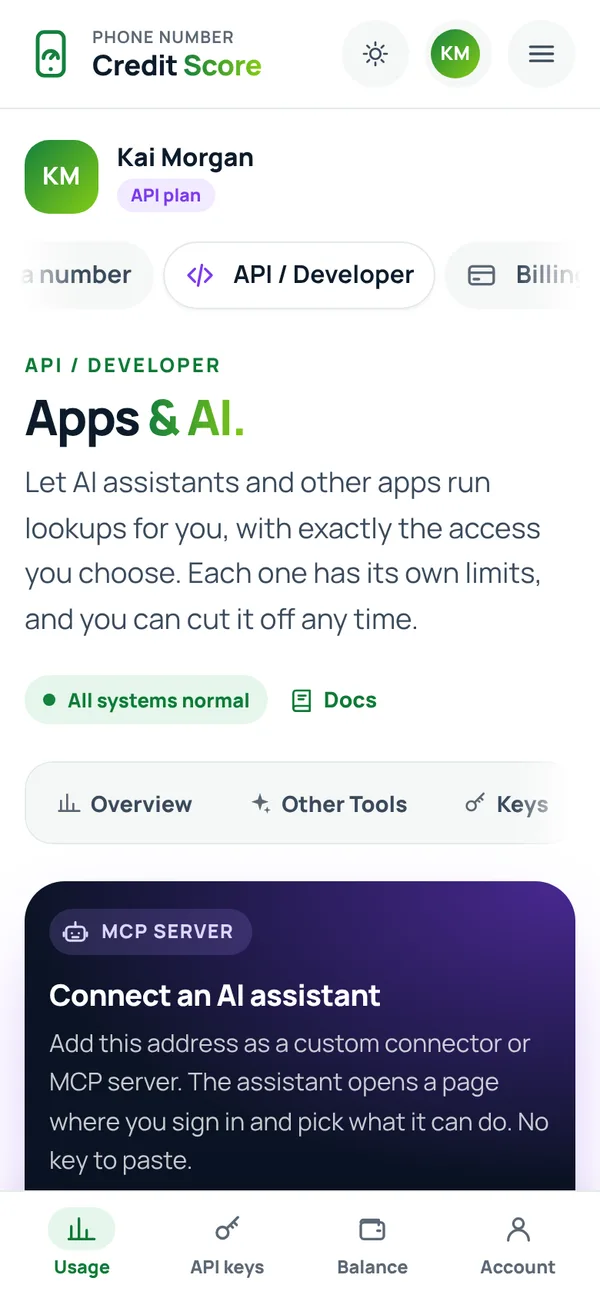
-
Under Connect an AI assistant, tap Copy to copy our server address.
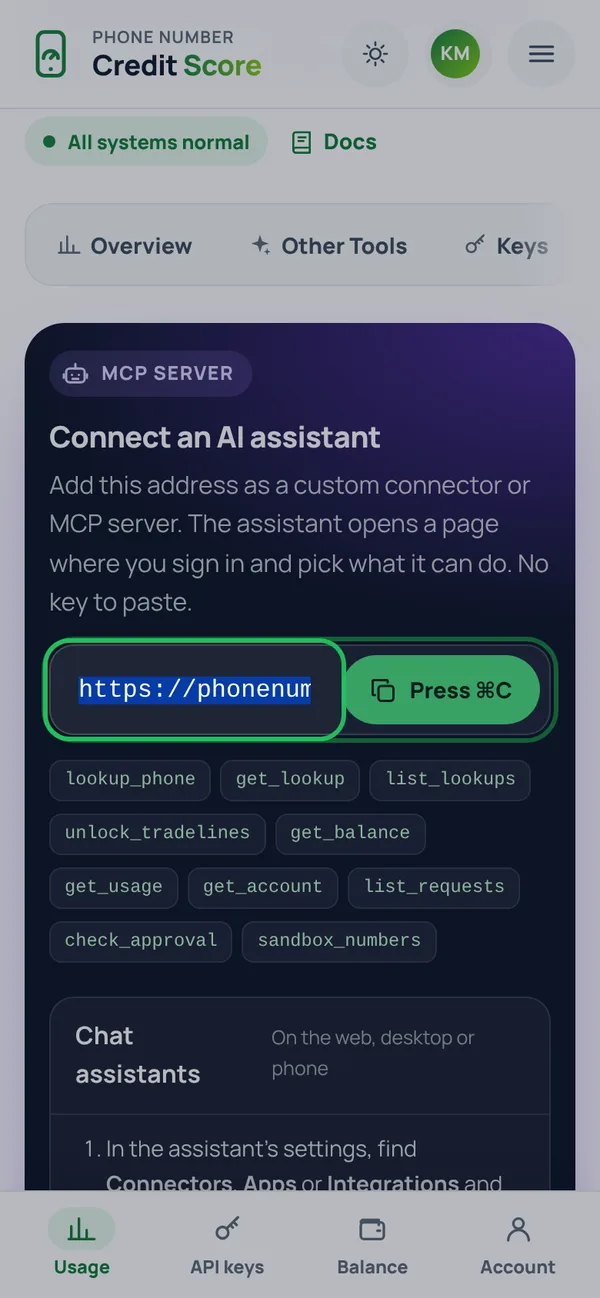
-
Open your assistant’s instructions below: chat assistants, coding tools, or tools that use an API key. Add the address there, then sign in to approve it.
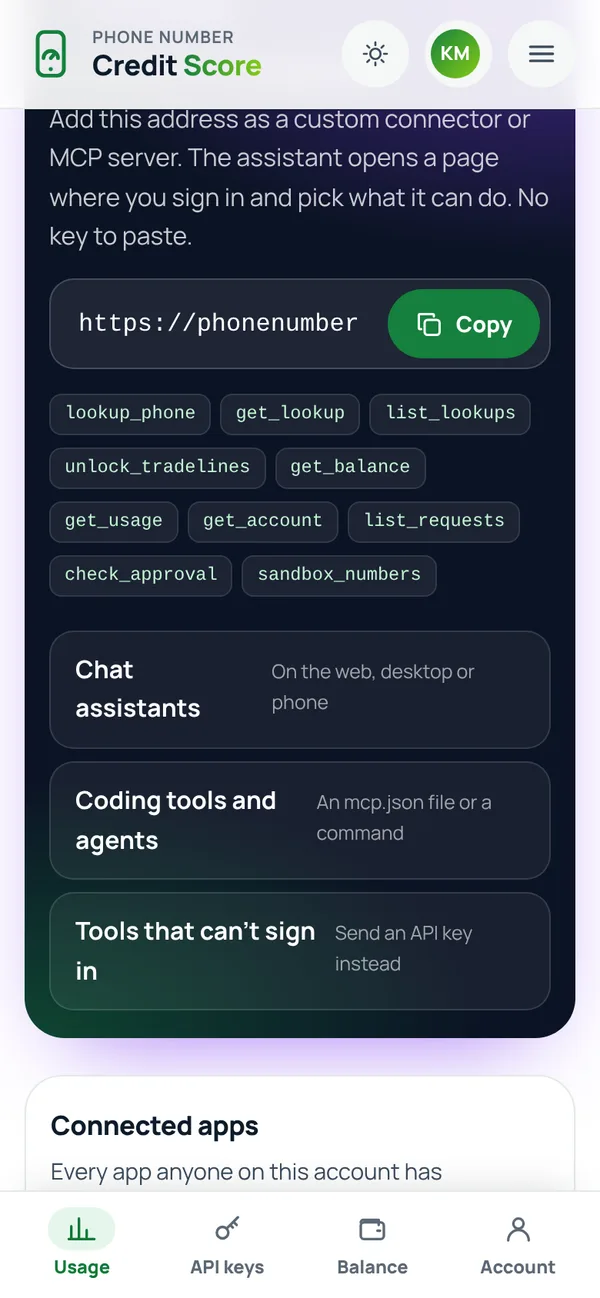
-
Connected assistants are listed under Connected apps, where you can set limits or disconnect them.