Add funds and turn on auto-refill
Live lookups are paid from a prepaid balance. Add funds, and let auto-refill top it up so lookups never stop.
Read the video’s transcript
Here’s how to add funds and turn on auto-refill.
Live lookups are paid from your prepaid balance. Open Billing to add funds.
Pick an amount. We show about how many lookups it covers.
Select Add. It’s charged to your card, and added to your balance.
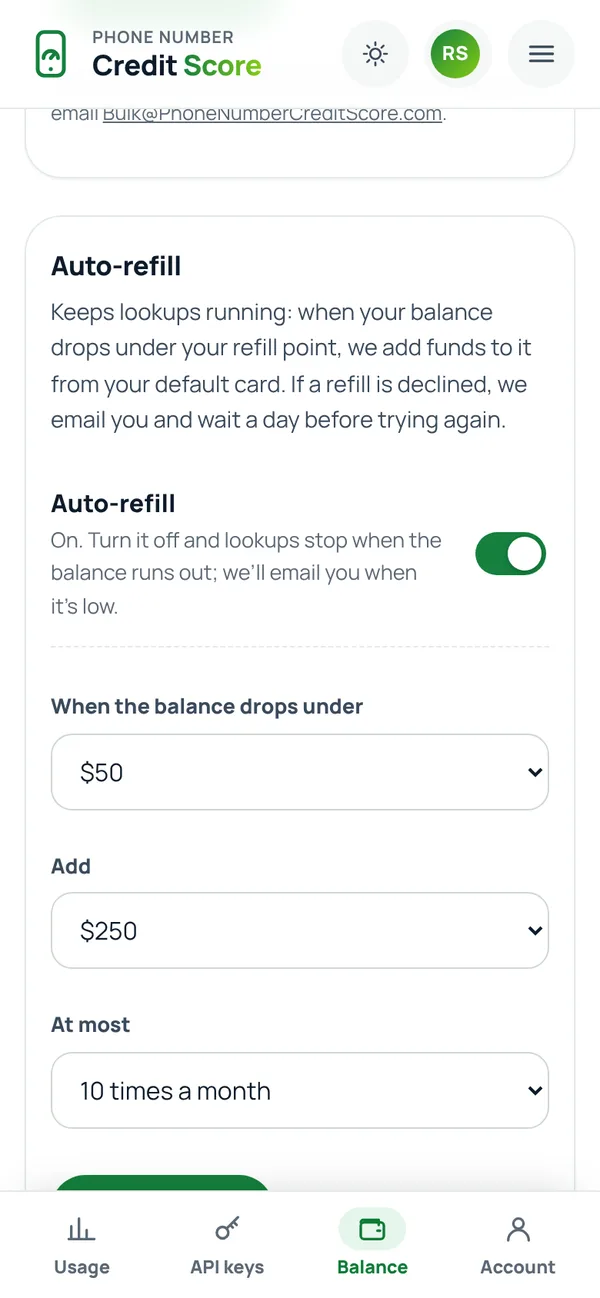
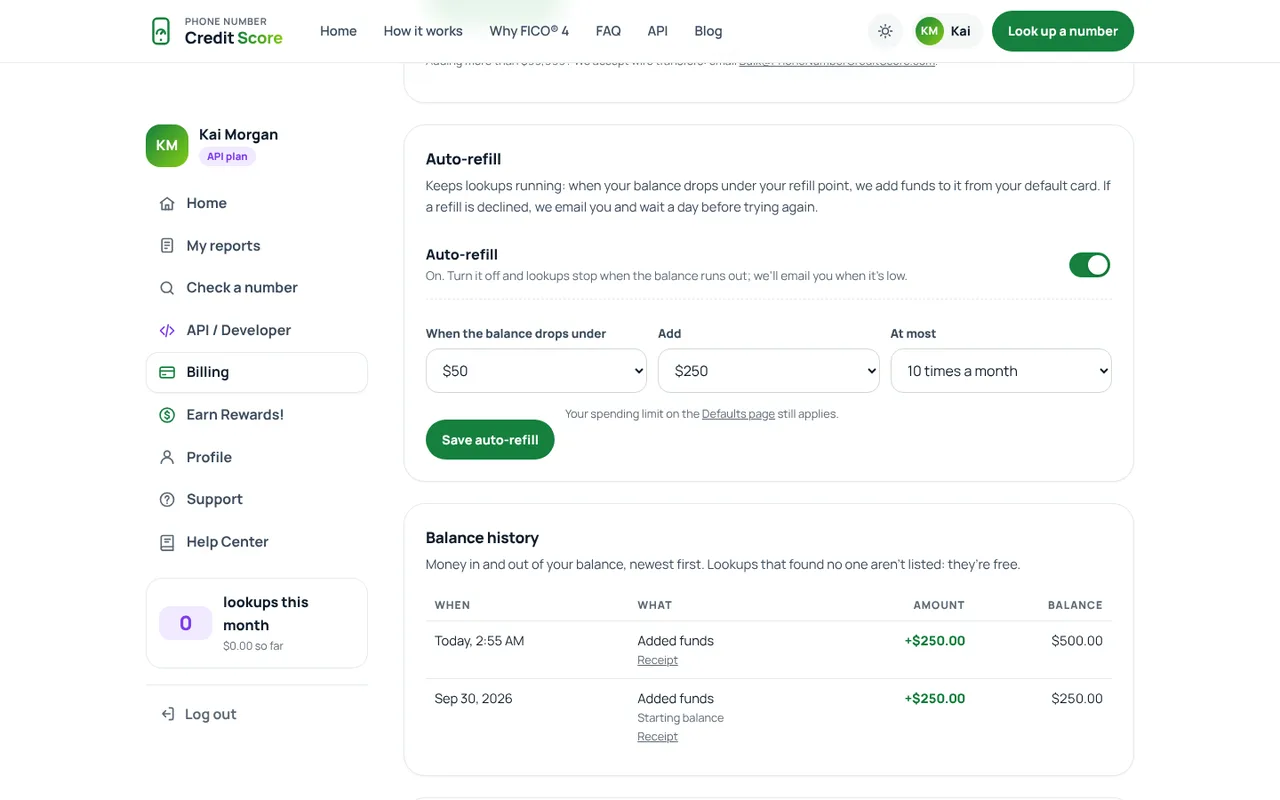
Under Auto-refill, turn it on, and choose when to refill and how much. Then save.
Still stuck? Our team is happy to help. Just contact Support.
Step by step on a computer
-
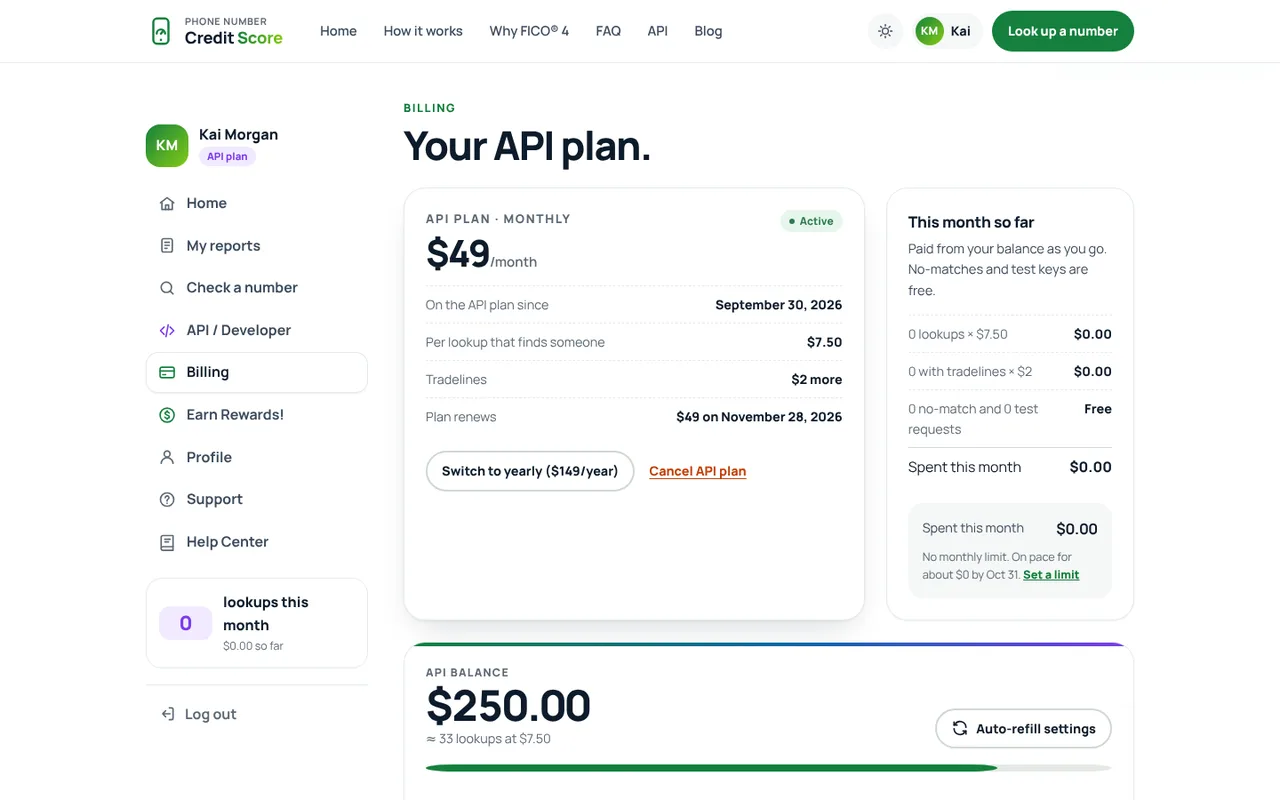
Open Billing from your account menu.
-
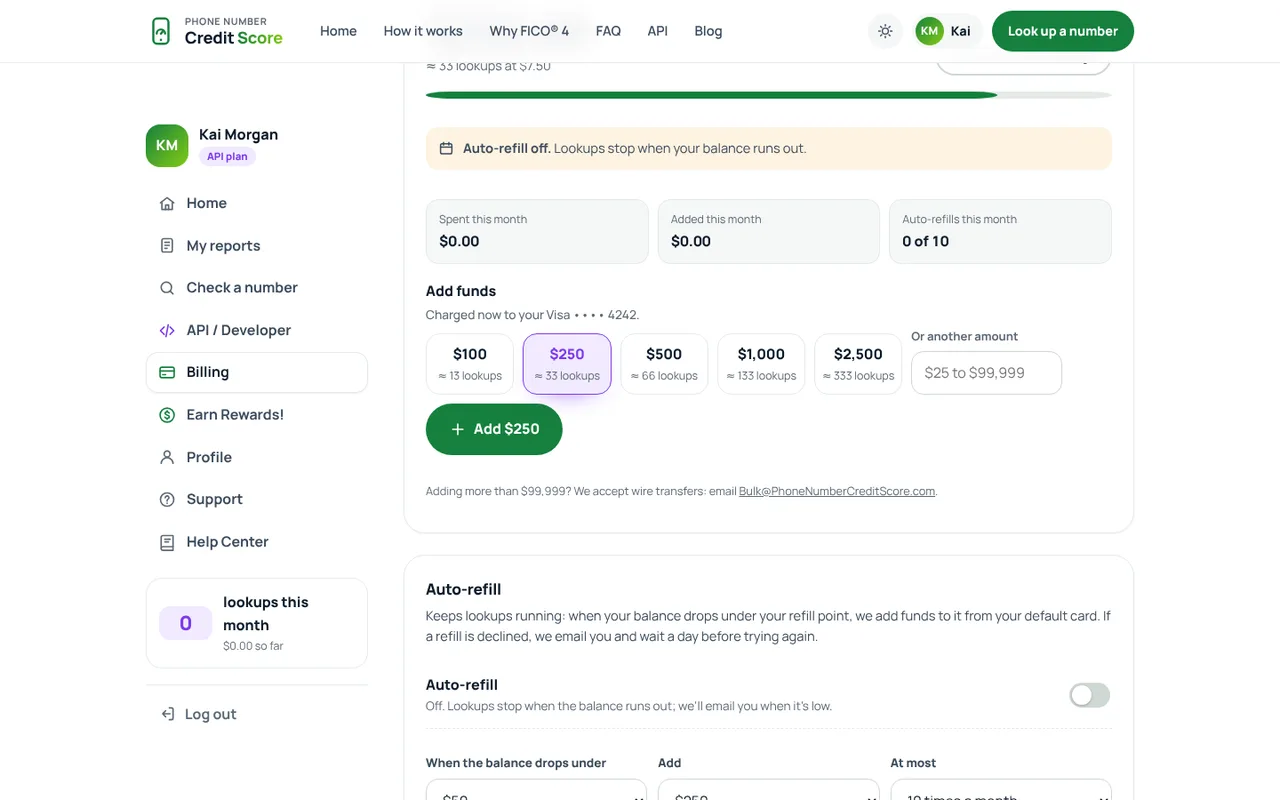
Pick an amount. We show about how many lookups it covers.
-
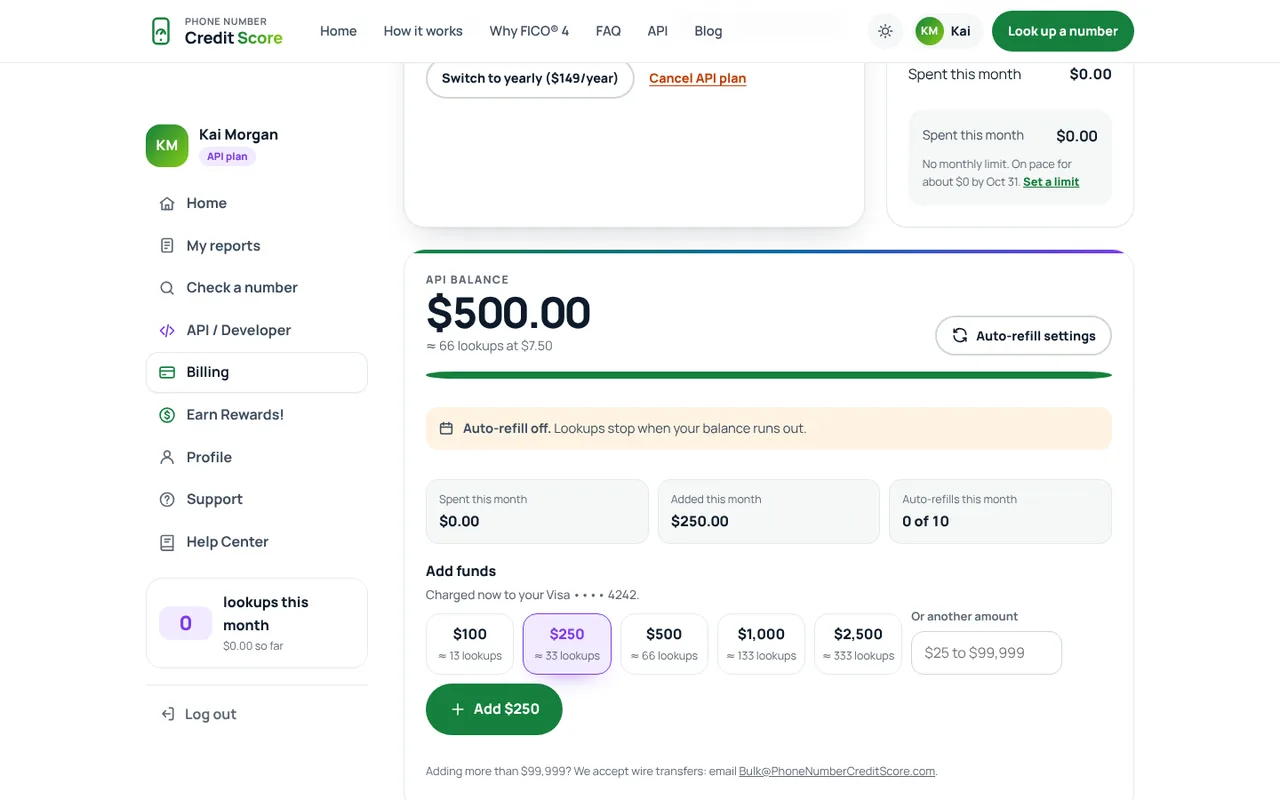
Select Add. The amount is charged to your card and added to your balance.
-
Under Auto-refill, turn it on and choose when to refill and how much. Then select Save auto-refill.
Read the video’s transcript
Here’s how to add funds and turn on auto-refill.
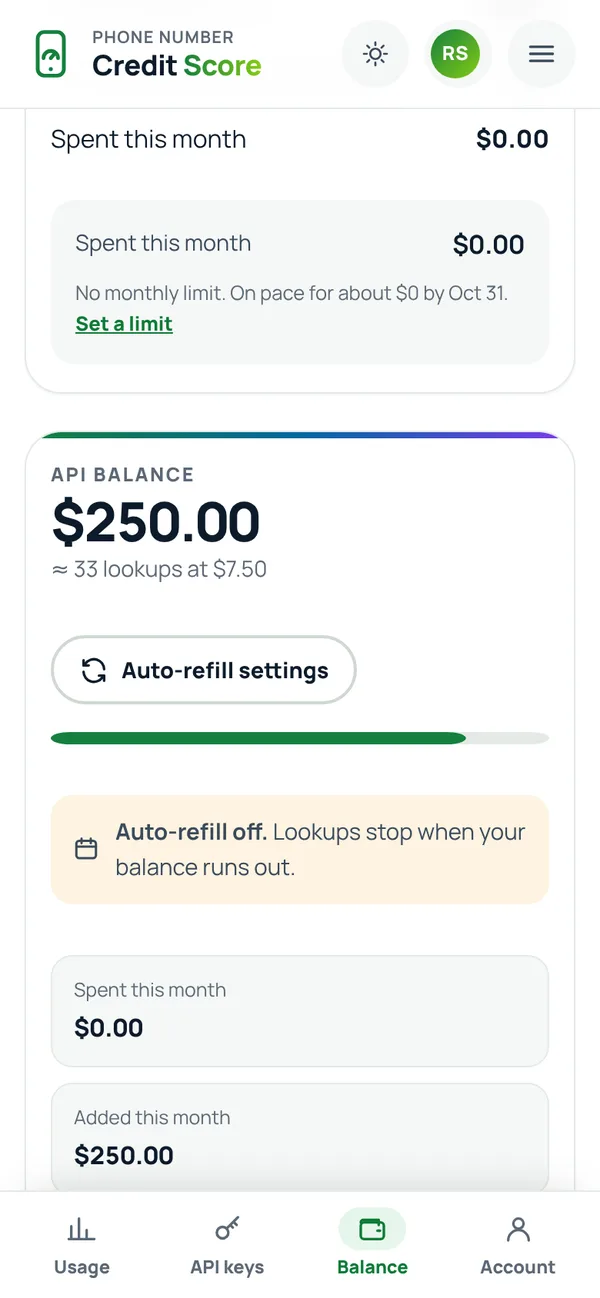
Live lookups are paid from your prepaid balance. To add funds, tap Balance, at the bottom of the screen.
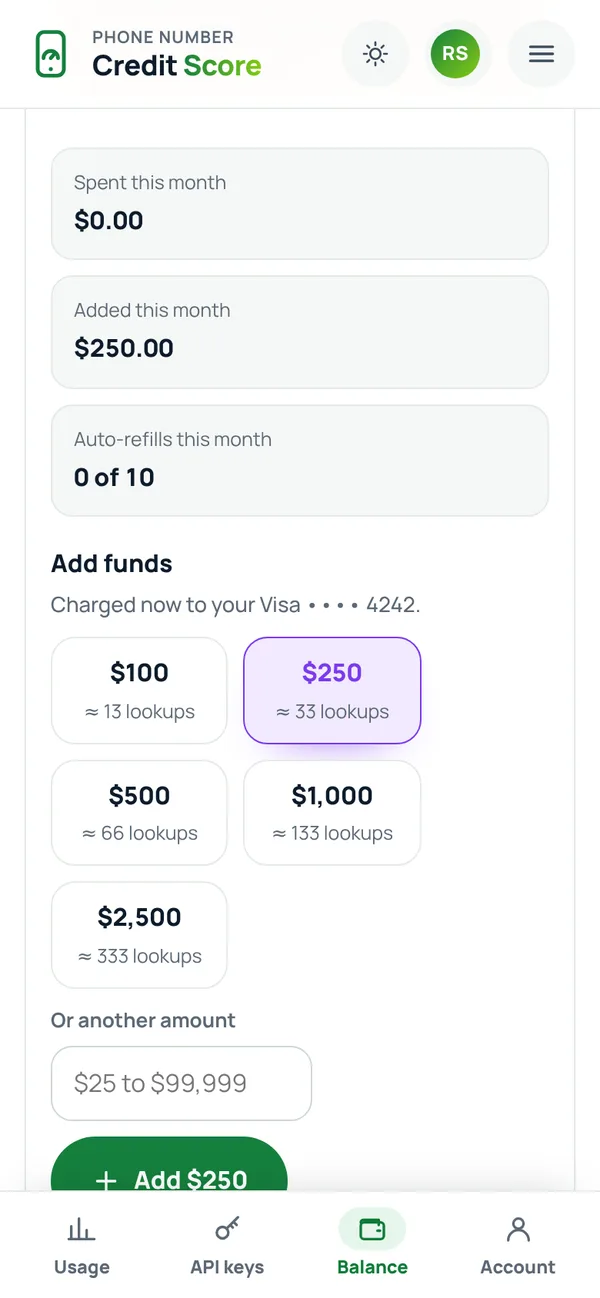
Pick an amount. We show about how many lookups it covers.
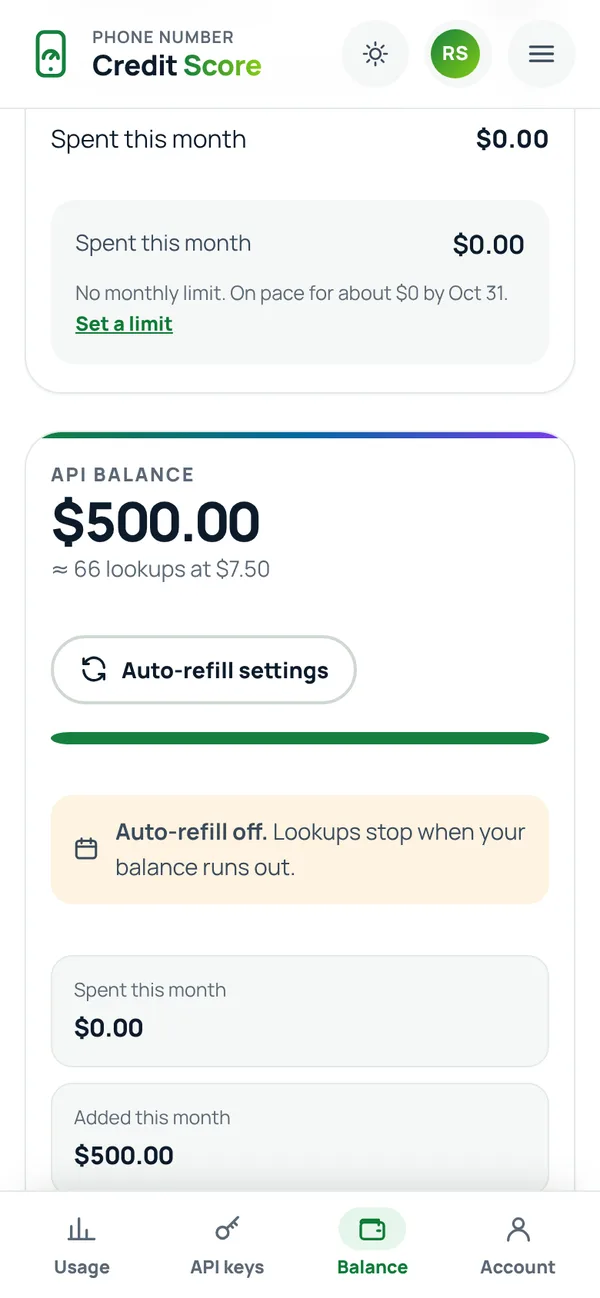
Tap Add. It’s charged to your card, and added to your balance.
Under Auto-refill, turn it on, and choose when to refill and how much. Then save.
Still stuck? Our team is happy to help. Just contact Support.
Step by step on a phone
-
Tap Balance in the bar at the bottom of the screen.
-
Pick an amount. We show about how many lookups it covers.
-
Tap Add. The amount is charged to your card and added to your balance.
-
Under Auto-refill, turn it on and choose when to refill and how much. Then tap Save auto-refill.