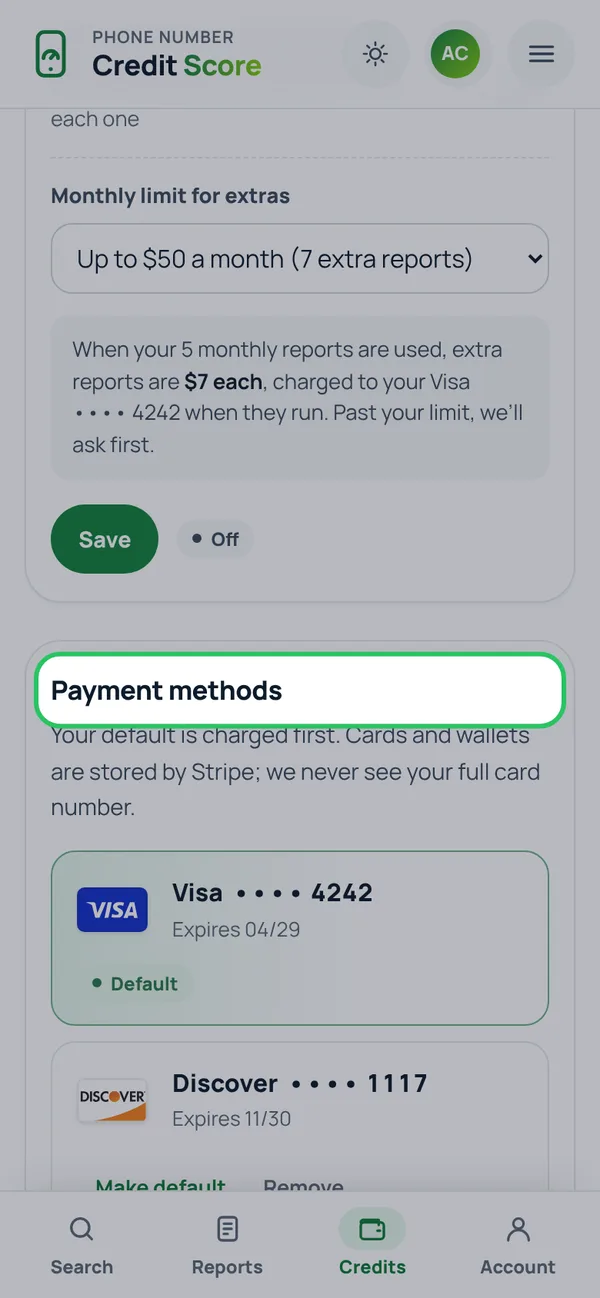
Add or change your card
Add a card, Apple Pay or Google Pay, and choose which one we charge.
Read the video’s transcript
Here’s how to add or change your card.
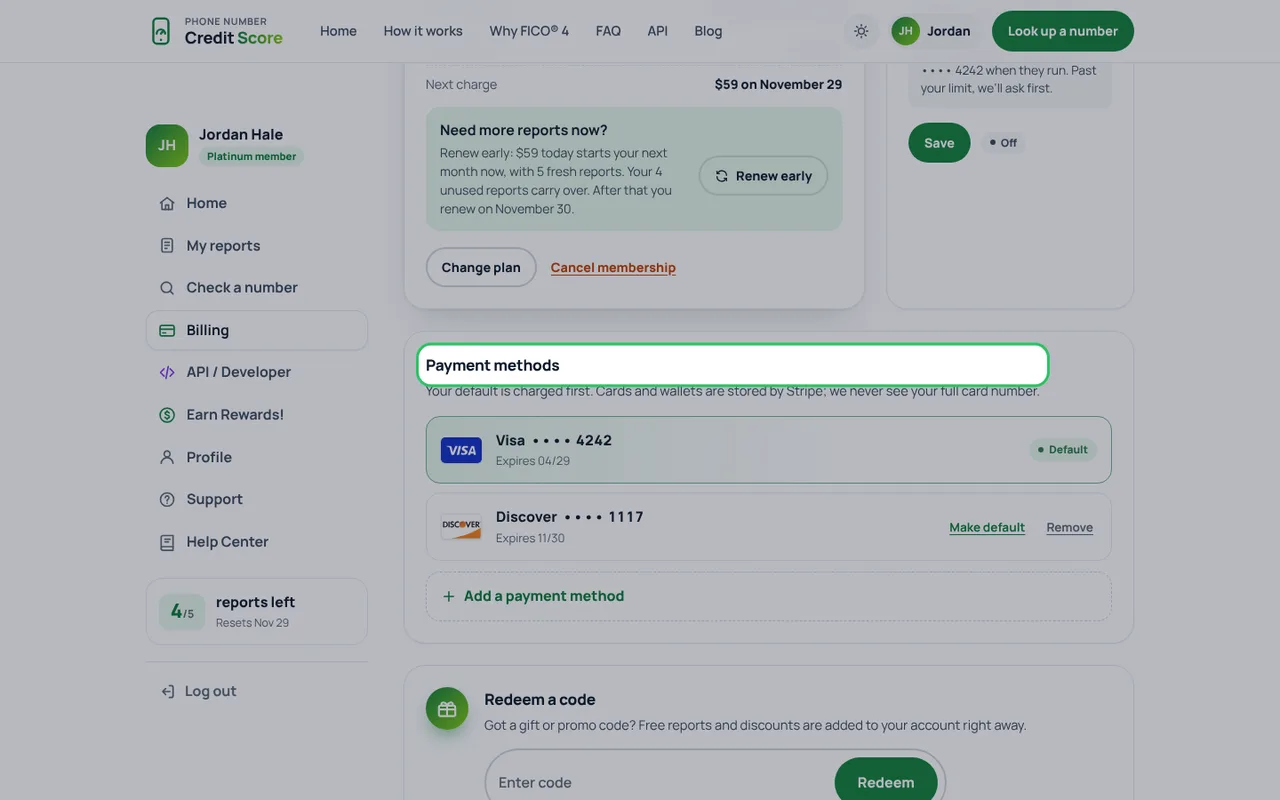
To add or change your card, open Billing.
Under Payment methods, select Add a payment method.
Choose a credit or debit card, Apple Pay or Google Pay, and follow the steps.
Your new card is added. Pick the one we should charge by default.
Still stuck? Our team is happy to help. Just contact Support.
Step by step on a computer
-
Open Billing from your account menu.
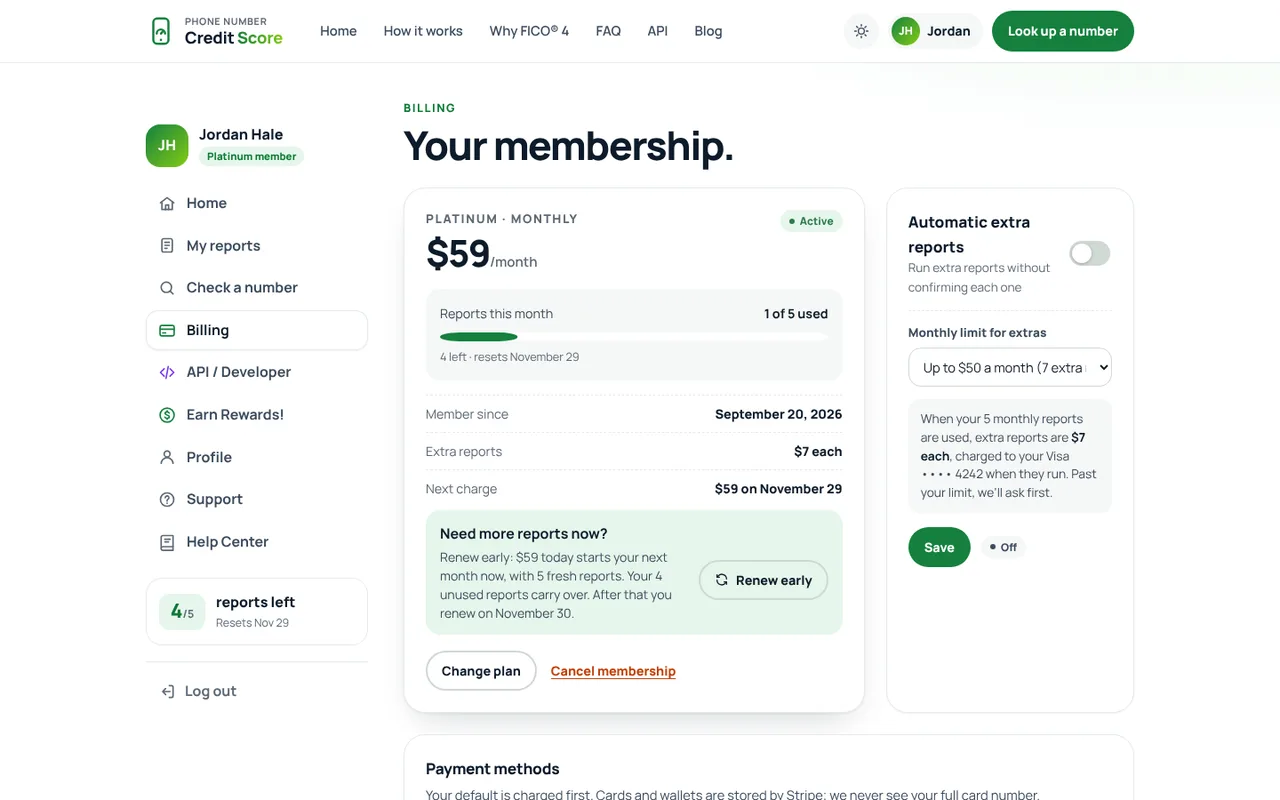
-
Under Payment methods, select Add a payment method.
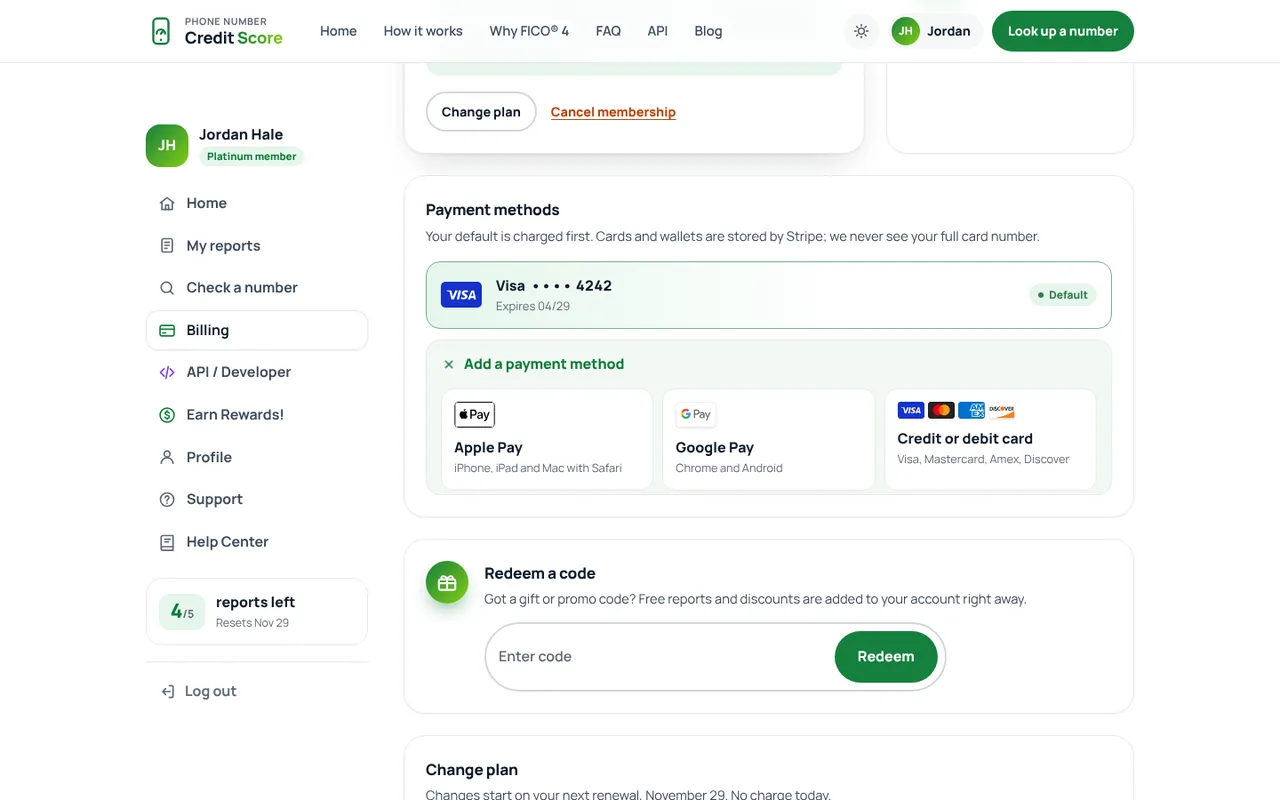
-
Choose Credit or debit card, Apple Pay or Google Pay, and follow the steps. Card details are entered securely and never stored by us in full.
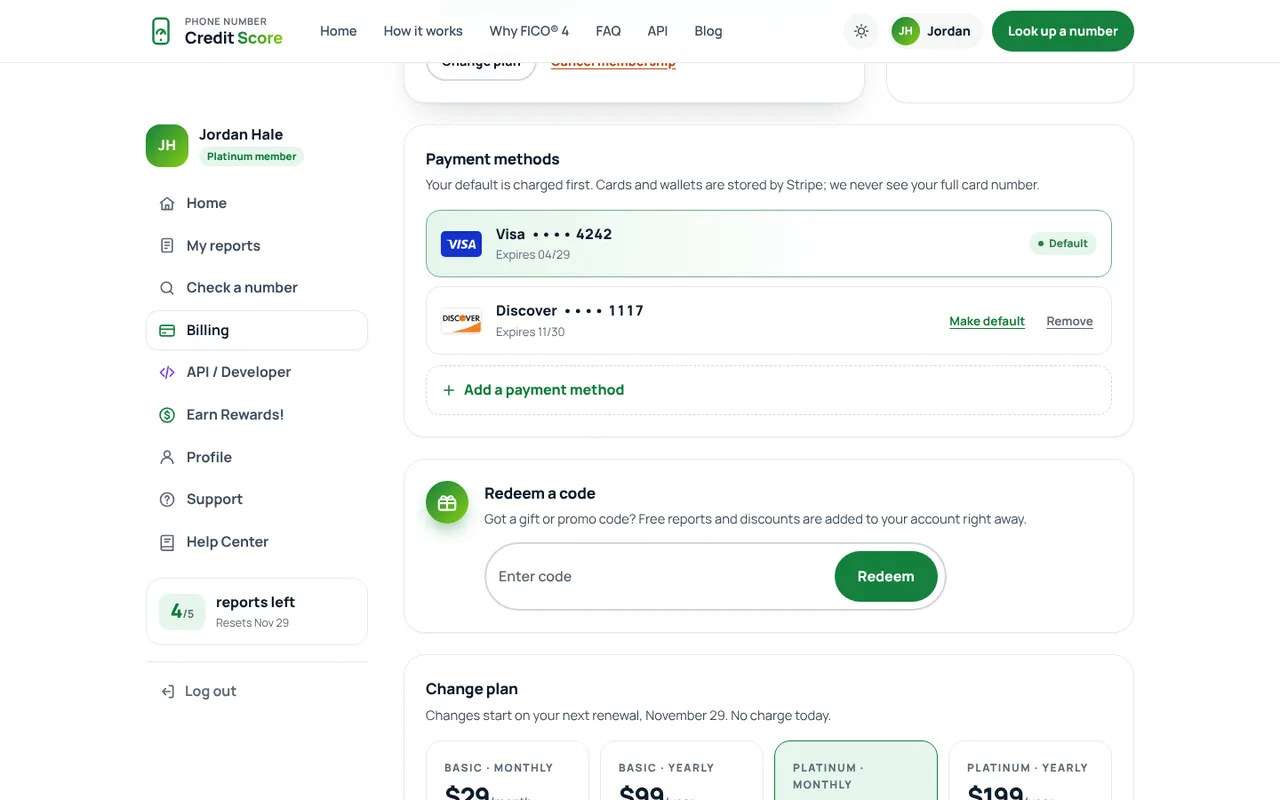
-
Your new card is listed. Choose the one we should charge as your default.
Read the video’s transcript
Here’s how to add or change your card.
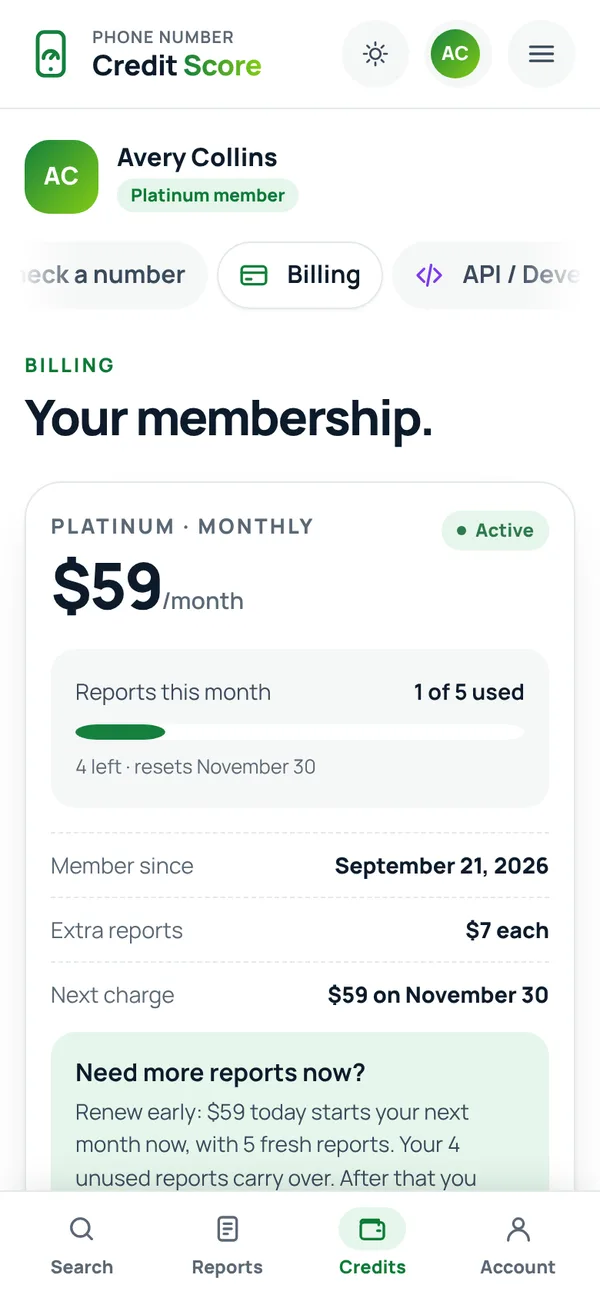
To add or change your card, tap Account, at the bottom of the screen, then Billing.
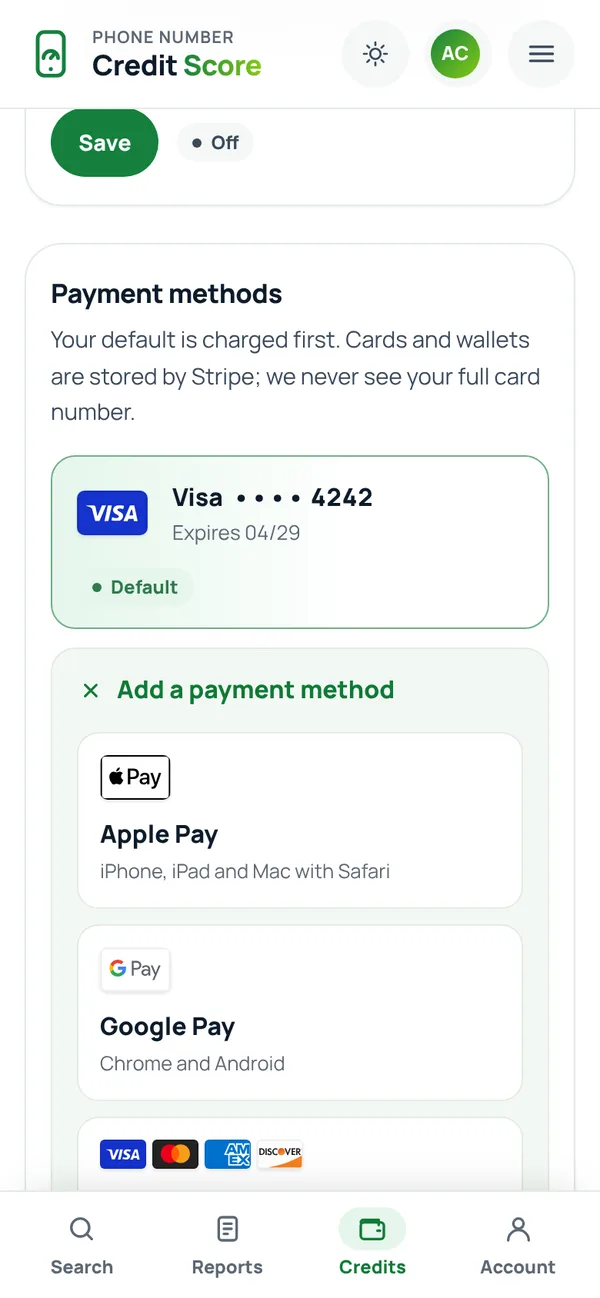
Under Payment methods, tap Add a payment method.
Choose a credit or debit card, Apple Pay or Google Pay, and follow the steps.
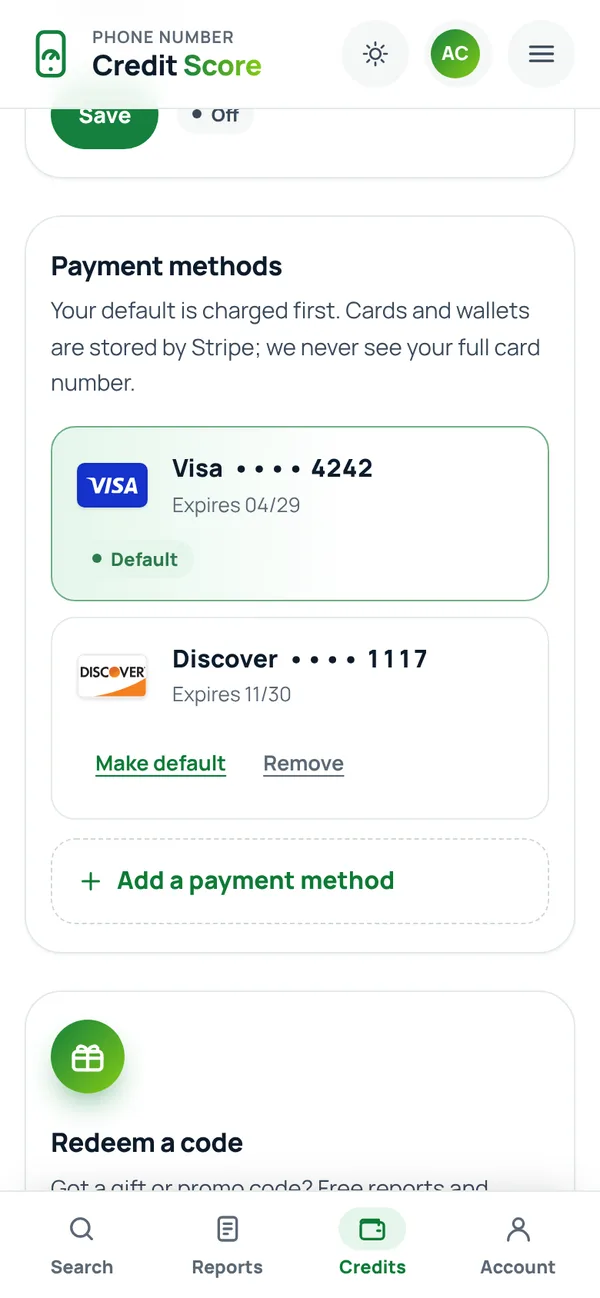
Your new card is added. Pick the one we should charge by default.
Still stuck? Our team is happy to help. Just contact Support.
Step by step on a phone
-
Tap Account in the bar at the bottom, then Billing.
-
Under Payment methods, tap Add a payment method.
-
Choose Credit or debit card, Apple Pay or Google Pay, and follow the steps. Card details are entered securely and never stored by us in full.
-
Your new card is listed. Choose the one we should charge as your default.